How to work with the tasks for a TG and check them off?
Last updated
Q: How to work with the tasks for a TG and check them off?
A: Once you click on a small card from the list of triangulated groups you are presented with a new modal window that shows you all the tasks that are available for this TG
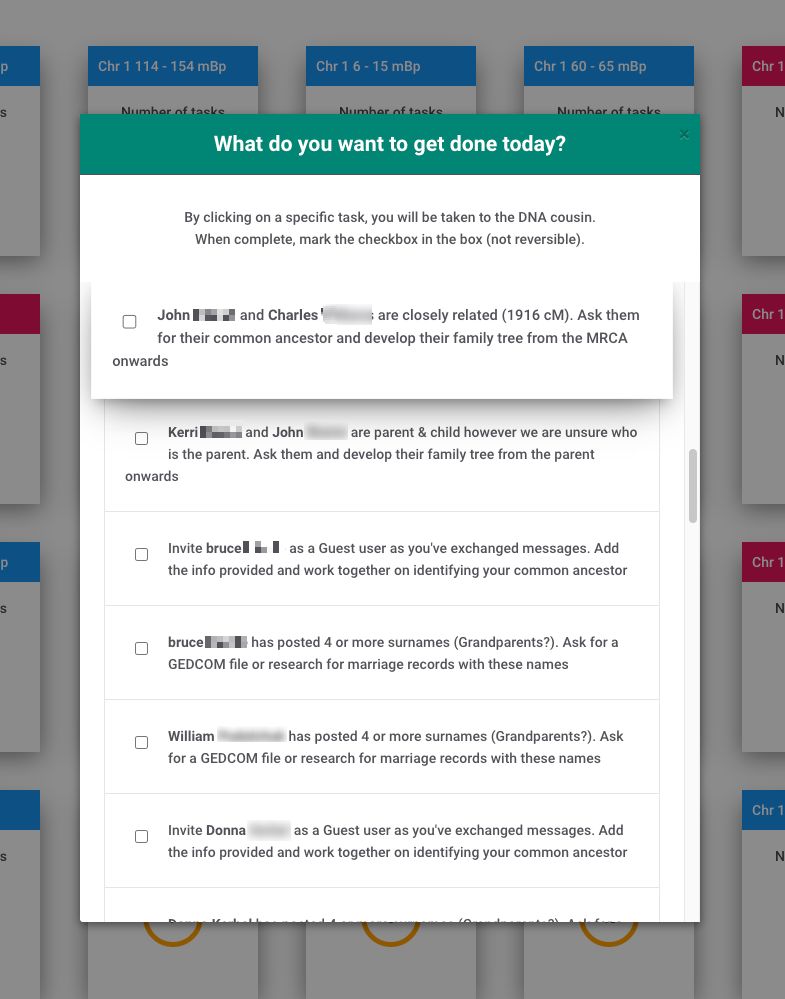
In this example we do see several different types of tasks, from being closely related (but not parent/child), to a parent/child case, a case where a DNA match send a message earlier on and lastly to have posted 4 or more surnames.
From here you have 3 options:
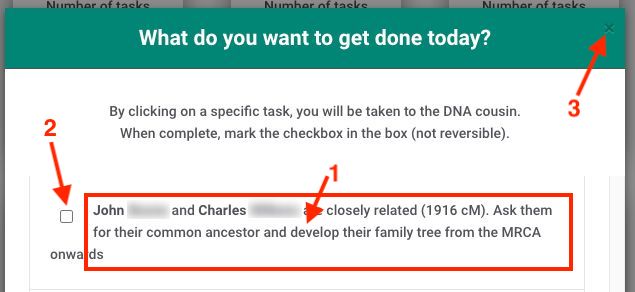
- Click on any task will take you to that DNA cousin directly so you can check the information we've collected about them.
- When you click into the empty box on the leftmost of the task it will mark the task as "done". Please note that this is irreversible so please ensure that you have taken the recommended action before checking them off
- You can close the window by clicking the "x" on the top right corner
Should you be on macOS and you can see the scroll bars (like in the screenshot above) then you need to change your system settings as follows:
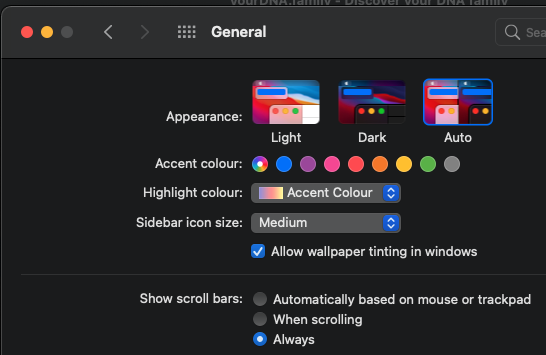
Apple has changed the default to not showing you any scroll bar unless you start scrolling. In many cases, there are more tasks below (which is also the case in other windows in our app)!