Import your GEDmatch matches
Last updated
Copy your GEDmatch results into the yourDNA.family desktop app to keep track of matches and choose whom to invite.
How the two services work together
Use GEDmatch to find the matches for a DNA test. Its One-to-Many tool lists matches for one kit. Its One-to-One tool shows which segments two kits share. GEDmatch One-to-Many guide · GEDmatch One-to-One guide
In yourDNA.family, open Invitations to use a copy of that match list. You can add notes and choose whom to invite. To compare your own raw DNA in yourDNA.family, add the file from your testing company.
Open the import guide
Have your GEDmatch kit number ready. Keep the yourDNA.family desktop app open.
- In Puzzle, open Invite your best matches.
- In the Invitations sidebar, select GEDmatch.
- If the app shows the Genetic Data Addendum, read it before you continue.
- Choose Import your GEDmatch matches.
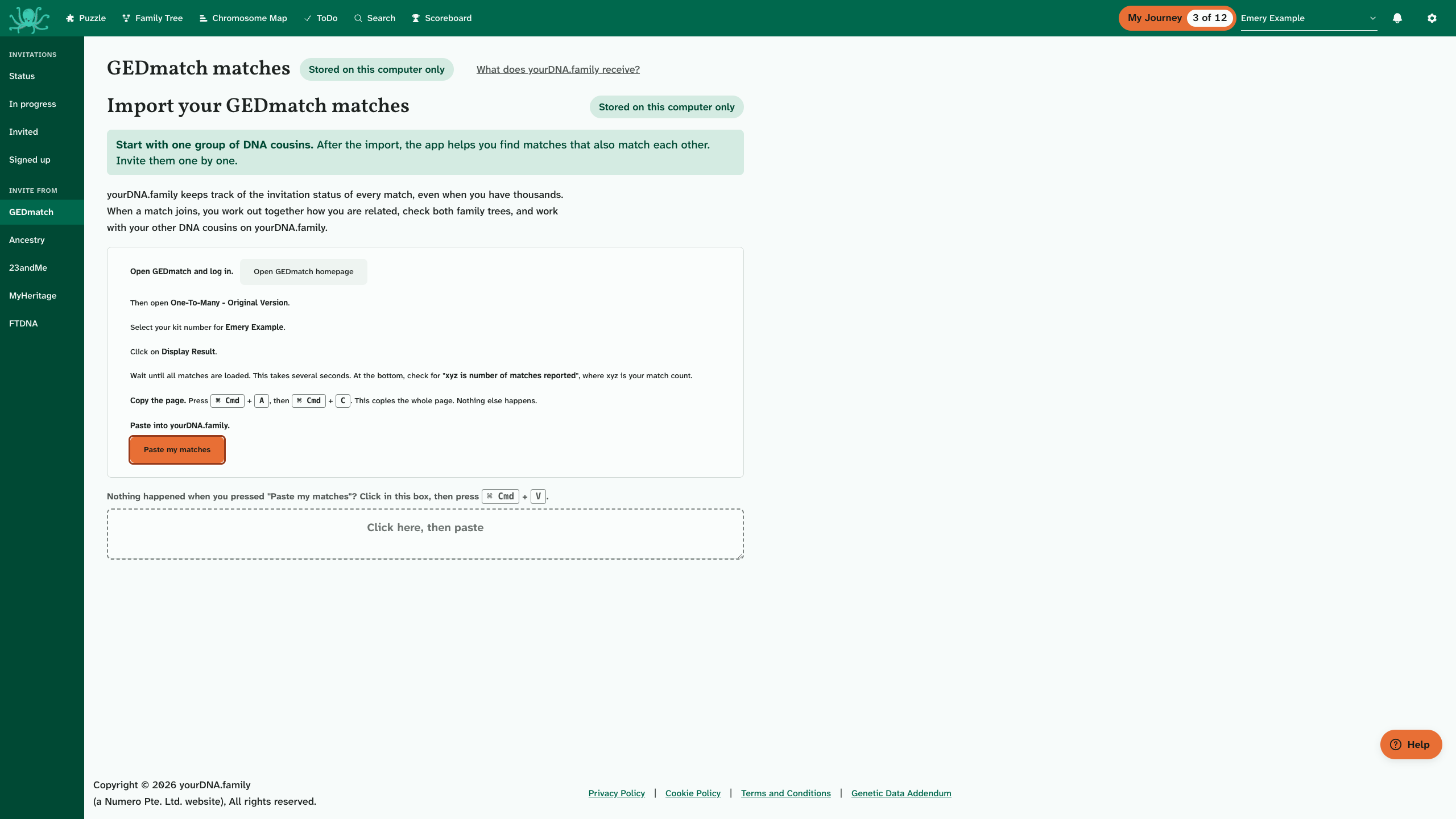
Open the Invitations example at full size.
Copy the results from GEDmatch
- In the app guide, choose Open GEDmatch homepage. Sign in to GEDmatch in your browser.
- Follow the app guide to open the One-To-Many - Original Version results for your kit.
- Wait for the full list to appear. Check the number of matches reported at the bottom of the results.
- Click inside the results page. Press Ctrl + A, then Ctrl + C. On a Mac, press Cmd + A, then Cmd + C.
Confirm and save the list
- Return to yourDNA.family. Choose Paste my matches.
- If the button has no effect, click the Click here, then paste box. Press Ctrl + V or Cmd + V.
- If Confirm your GEDmatch kit opens, check the number and the person's name. Choose Yes, this is the correct kit if they match.
- Check the number of matches in the summary. If the app says the copy is too short, return to GEDmatch and copy the full results again.
- Select Save. The first time, read the notice and select I understand, save my list.
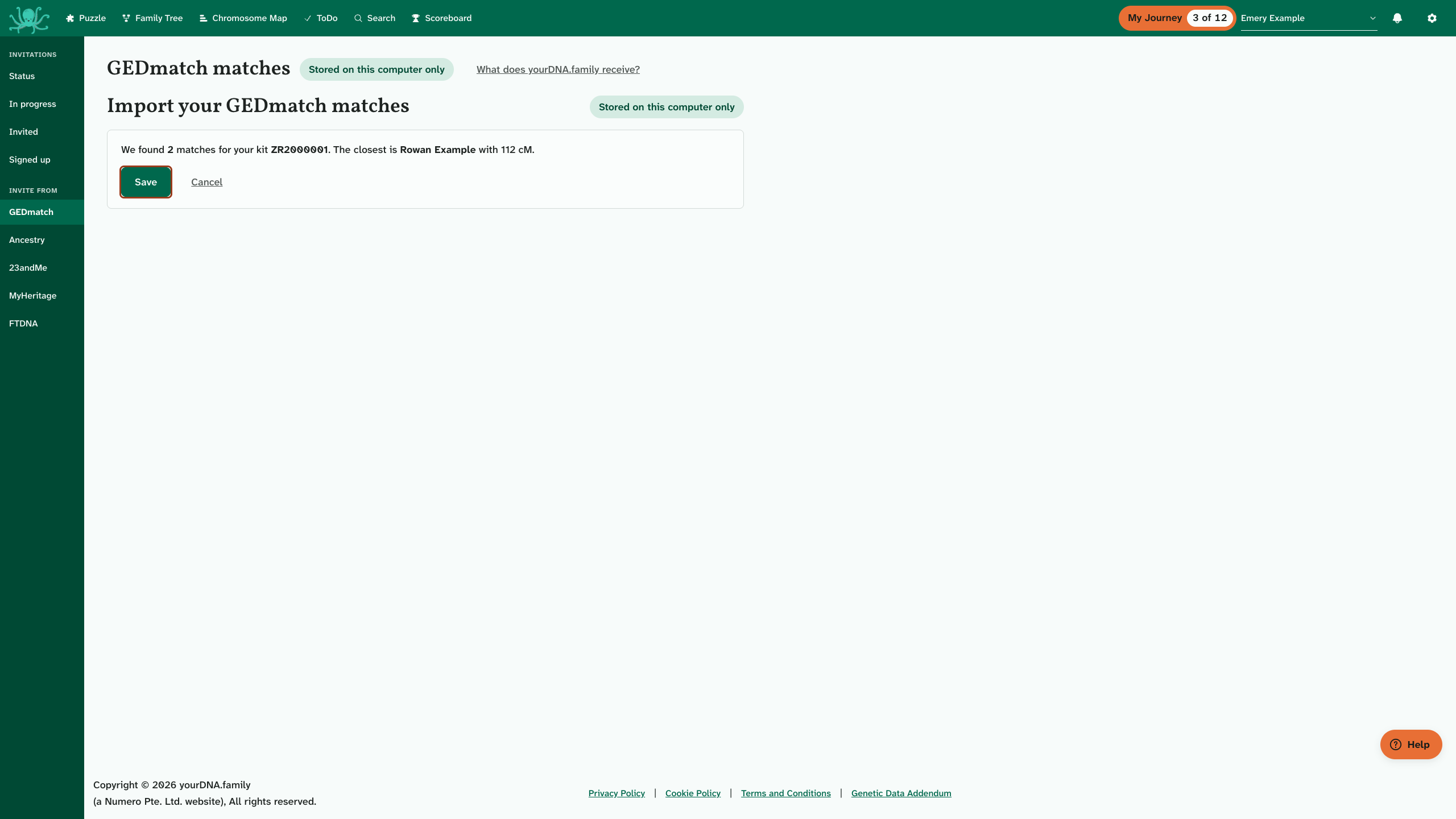
Open the Save preview at full size.
- Look for the saved matches in GEDmatch matches.
After you save, look for the match names in the table. In this example, the saved list shows Rowan Example.
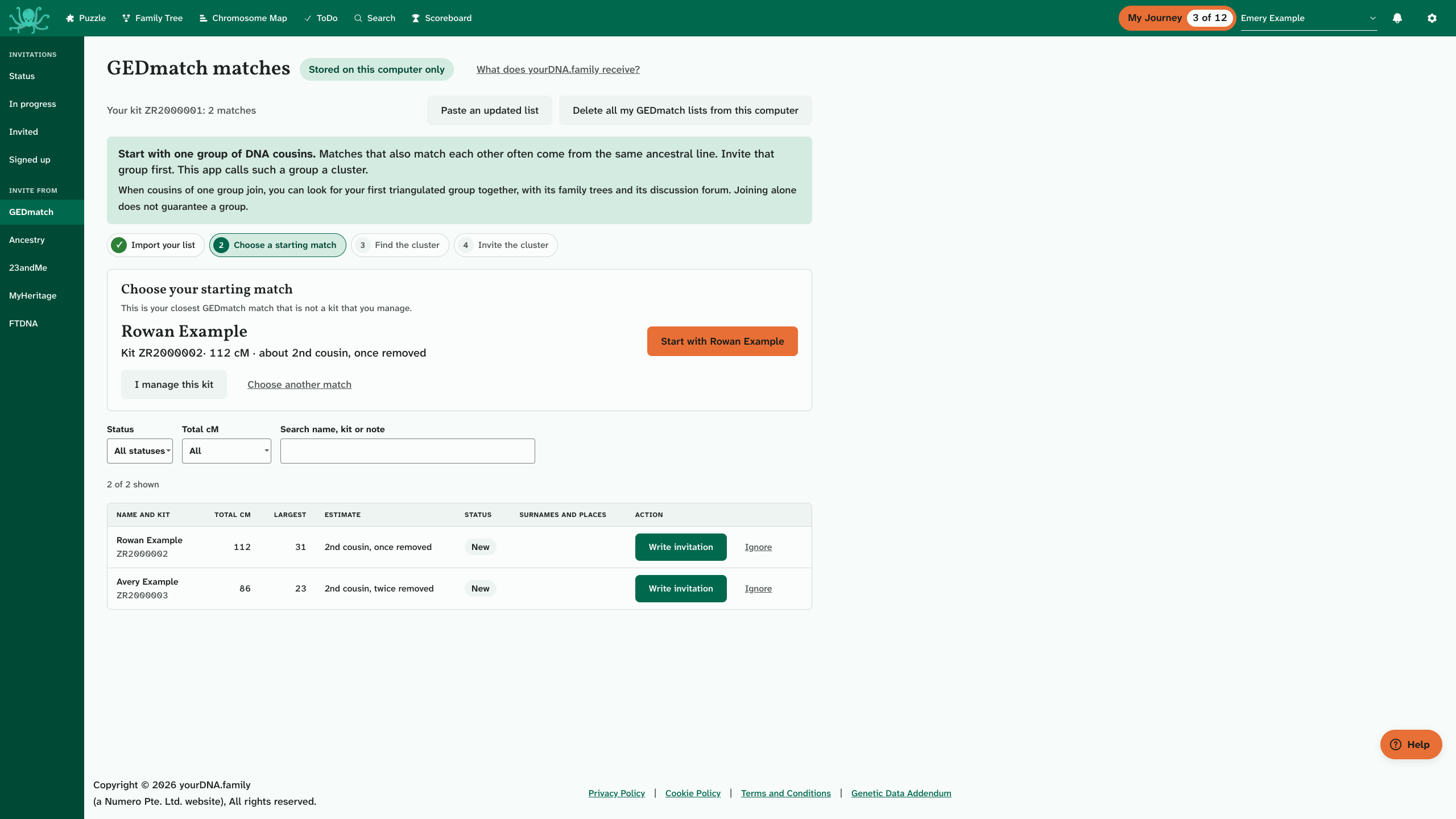
Open the saved list at full size.
If the app says This does not look like your GEDmatch list, return to the GEDmatch results tab. Copy the full page again, then return to the app and choose Paste my matches.
If you see Select the correct GEDmatch kit, note the kit number in that message. Choose Back to the instructions. Open the results for that kit in GEDmatch and copy them again.
When you paste a newer list later, the app shows how many matches are new, how many changed and how many are no longer on your GEDmatch list. Your own notes stay.
Invite one group of DNA cousins (a cluster)
Matches that also match each other often come from the same ancestral line. Open Invitations and select GEDmatch. After you import your list, the app helps you find such a group and invite it, one person at a time. The app opens only the GEDmatch homepage. It never opens a page inside GEDmatch for you.
- Choose your starting match. After the import, the app proposes your closest match. If this is a kit that you manage (for example your own second kit or the kit of a parent), press I manage this kit. The app then proposes the next match. You can also press Choose another match.
- Open the tool on GEDmatch. Go back to the GEDmatch main page. In the "Free tools" section at the bottom right, click "People who match both kits, or 1 of 2 kits".
- Enter the two kit numbers. The app shows your kit number and the kit number of your starting match, each with a Copy button. Do not change the three numbers below the kits. Press "Display Results".
- Wait for the result. Stay on the first tab, "Kits that match both".
- Copy and paste. Press Ctrl + A, then Ctrl + C (on a Mac: Cmd + A, then Cmd + C). Then press Paste my cluster in the app. The app shows how many kits GEDmatch found, how many are kits that you manage and how many are new to your list. Press Save my cluster.
- Invite the cluster. The app shows how many people of the cluster you invited (for example 3 of 23 invited) and the next person to invite. Press Invite and send the message from your own mail program. If you do not want to invite a person, press Skip this match.
If you copied the result for other kits, or the copy is not complete, the app saves nothing and tells you what to do.
Your cluster stays on this computer, like your list. yourDNA.family does not receive the members of your cluster or their number. When you invite a person of the cluster, we keep only the same invitation record as for any other match.
To give the family line of these matches a name, and to see it next to your matches from other testing companies, read Name the family line of your DNA matches.
Your GEDmatch list stays on this computer
Your GEDmatch list stays on this computer. yourDNA.family saves it only inside this app on this computer. When you invite a match, we keep only that match's GEDmatch kit number and the invitation status, so we can show you when they join. We never receive names, email addresses or cM values from your list. You can delete the list at any time. If you use another computer, paste the list again there.
yourDNA.family receives only this:
- your GEDmatch kit number,
- the GEDmatch kit number of each match you invite,
- the dates and the status of each invitation.
When you send an invitation, the email address stays on this computer. Your mail program sends the invitation, not yourDNA.family.
Delete your list
In the GEDmatch list, choose Delete all my GEDmatch lists from this computer. This removes all GEDmatch lists, notes, surnames, and places for this account on this computer. To confirm, choose Delete from this computer. Invitation records stay on yourDNA.family according to the schedule in section 5.6 of the Genetic Data Addendum.
After you confirm the deletion, the saved table closes. The Import your GEDmatch matches button appears again.
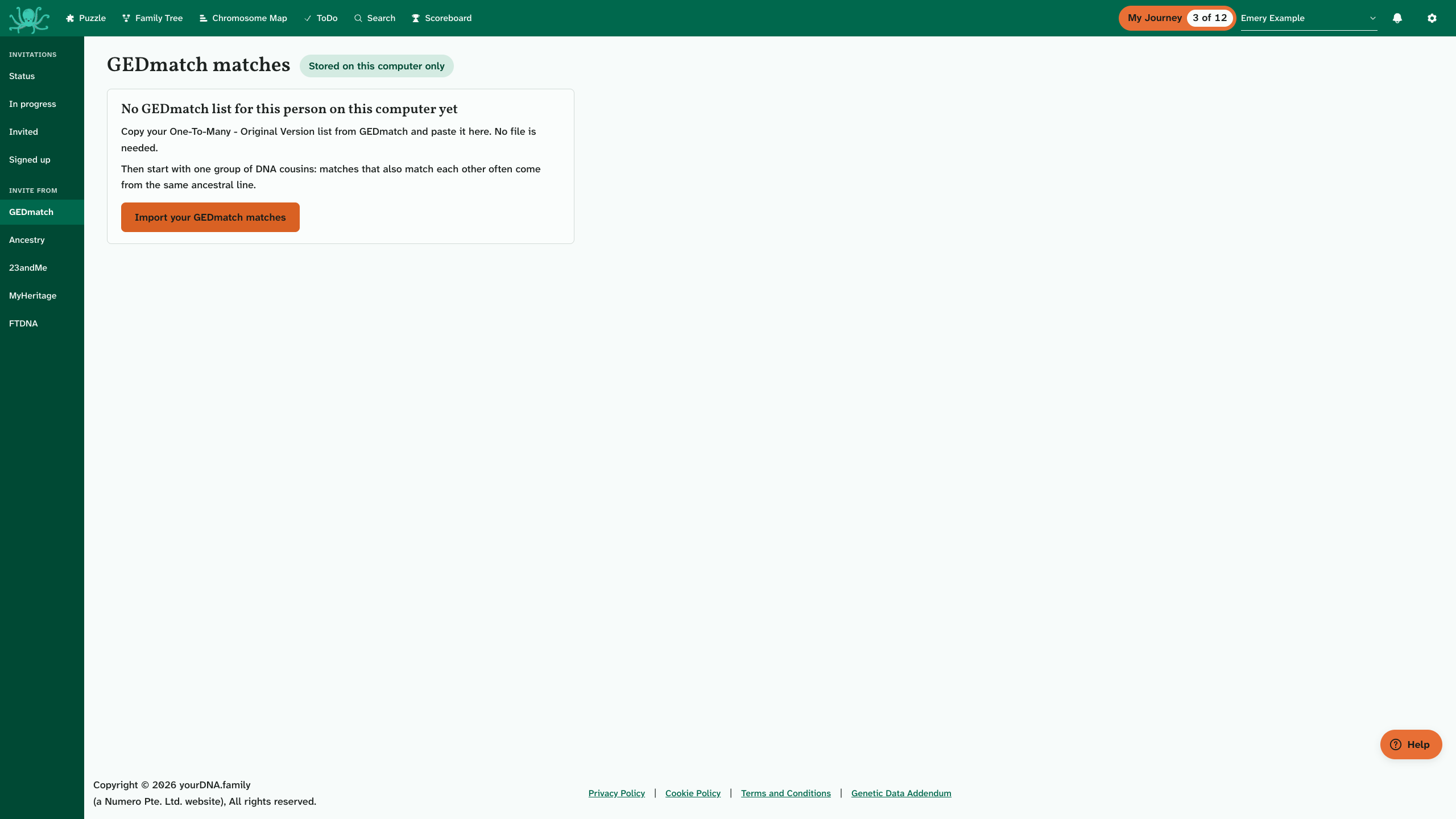
Open the screen after deletion at full size.
If you were invited
If your GEDmatch kit number is in an invitation record, you can ask us to delete it, and to not record it again. Write to info@yourDNA.family. We act within one month.