Can I use my mobile or tablet with the yourDNA.family app?
Last updated
The yourDNA.family app runs on Windows, Mac, and Linux computers. You can create your account in the browser on your phone or tablet. The setup email shows how to get the app and sign in on your computer.
Create your account on your phone or tablet
Use an email address you can open on both devices. You will need it when you sign in on your computer.
- Open yourDNA.family and choose Sign Up Free.
- Enter your name and email address.
- Read the agreement on the form. If you agree, select the checkbox.
- Choose Create my account.
- Open the email with your verification code.
- Return to the sign-up page and enter the code in Verification code.
- If the page stays open, choose Verify and continue.
When you see You're in!, your account is ready. Look for a separate email with the download links and setup steps.
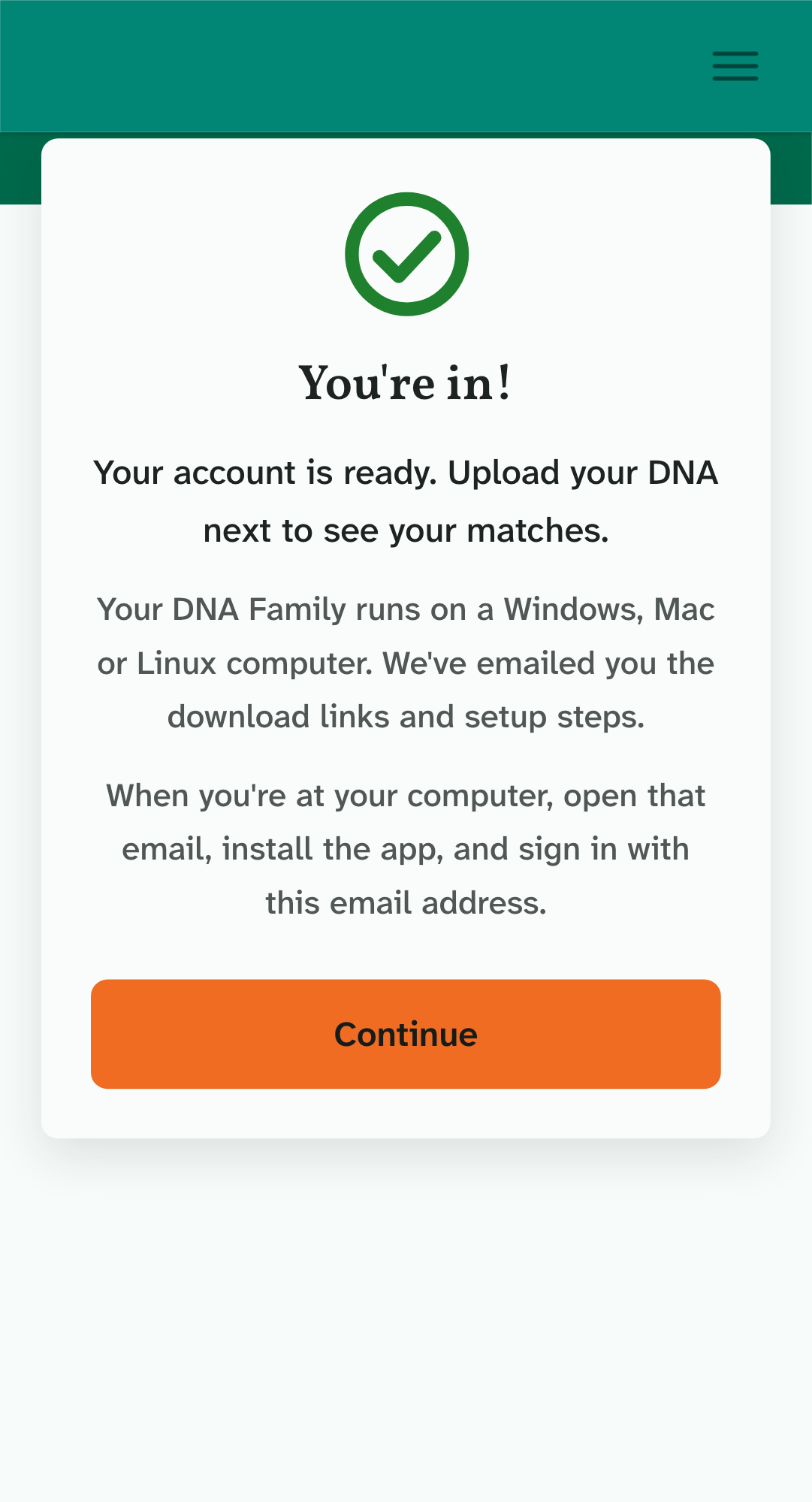
Open the phone screenshot at full size.
If the verification email is missing, check your spam or junk folder. If you need another code, use the email verification steps.
Open the app on your computer
- On your computer, open the setup email you received from yourDNA.family.
- Choose the download link for your computer.
- Wait for the download to finish. Find the file in your Downloads folder.
- On Windows or Mac, use the steps to open the downloaded file. On Linux, give the AppImage file permission to run. Then open the AppImage.
- Enter the email address you used to create your account.
- Click Log In.
- Open the new email with your sign-in code.
- Return to the desktop app and enter the new code in Verification code.
If you cannot find the setup email or are unsure which link to choose, use the app download guide.