How to join yourDNA.family - a step-by-step guide
Last updated
You can create your account on a computer, phone, or tablet. To use the yourDNA.family app, continue on a Windows, Mac, or Linux computer. Keep access to your email so you can get the codes that confirm your account and let you sign in.
Open the account form
- If you are on the website, open yourDNA.family and choose Sign Up Free.
- If you have already installed the app, open it and choose Create your free account on the sign-in screen.
Enter your details
- Enter your full name in Your name.
- Enter an email address you can open on your computer. Check that you typed it correctly before you continue.
- Read the terms, privacy policy, and addendum. If you agree and are at least 18, select the agreement checkbox.
- Choose Create my account below the checkbox. The next screen asks for a code from your email.
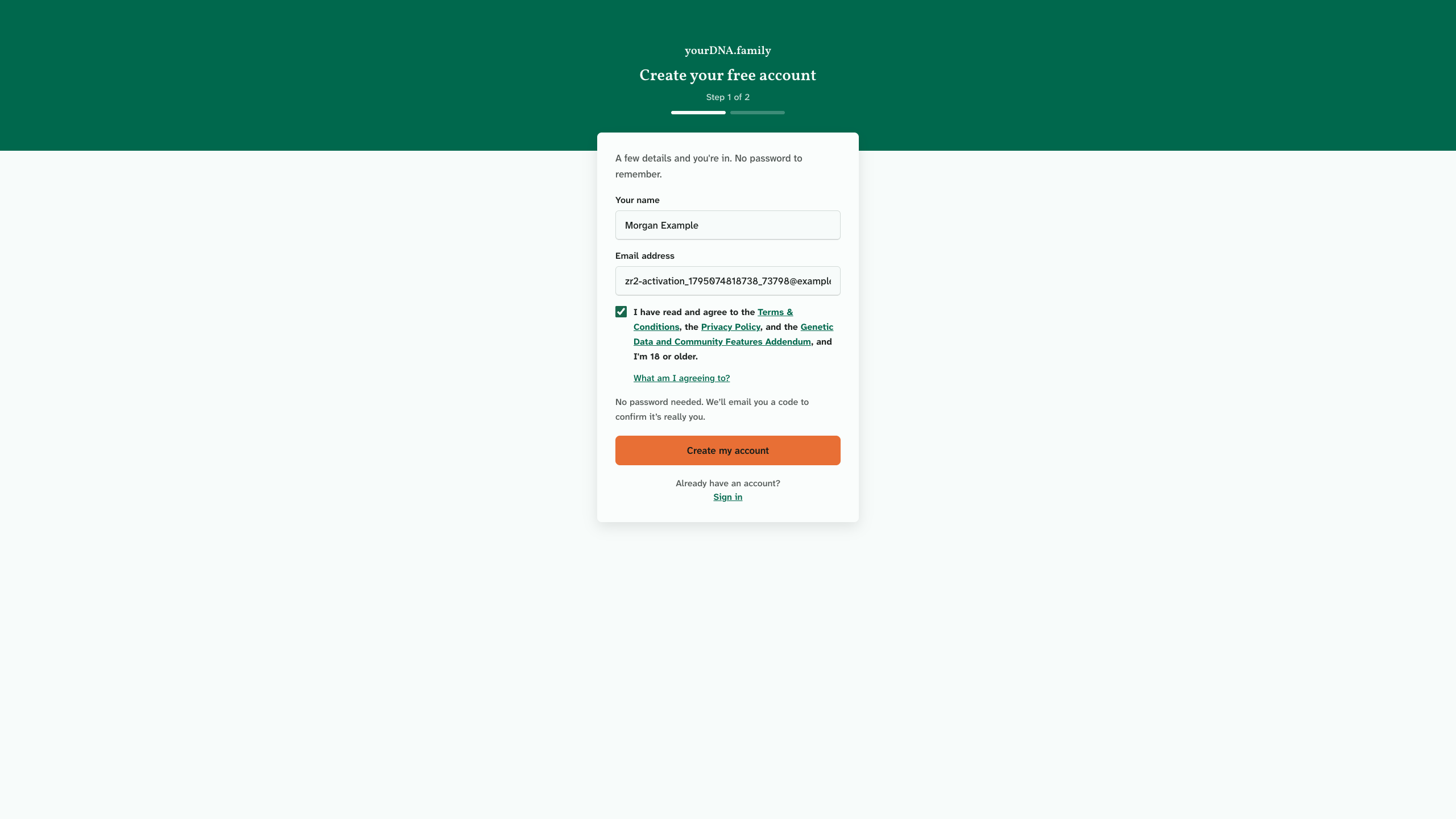
Open the sign-up form at full size.
Confirm your email address
- Keep the verification screen open. Open your email in another window or on your phone.
- Find the email from yourDNA.family and note the verification code.
- Return to Check your email in the app.
- Enter the code in Verification code. If the screen stays open, choose Verify and continue.
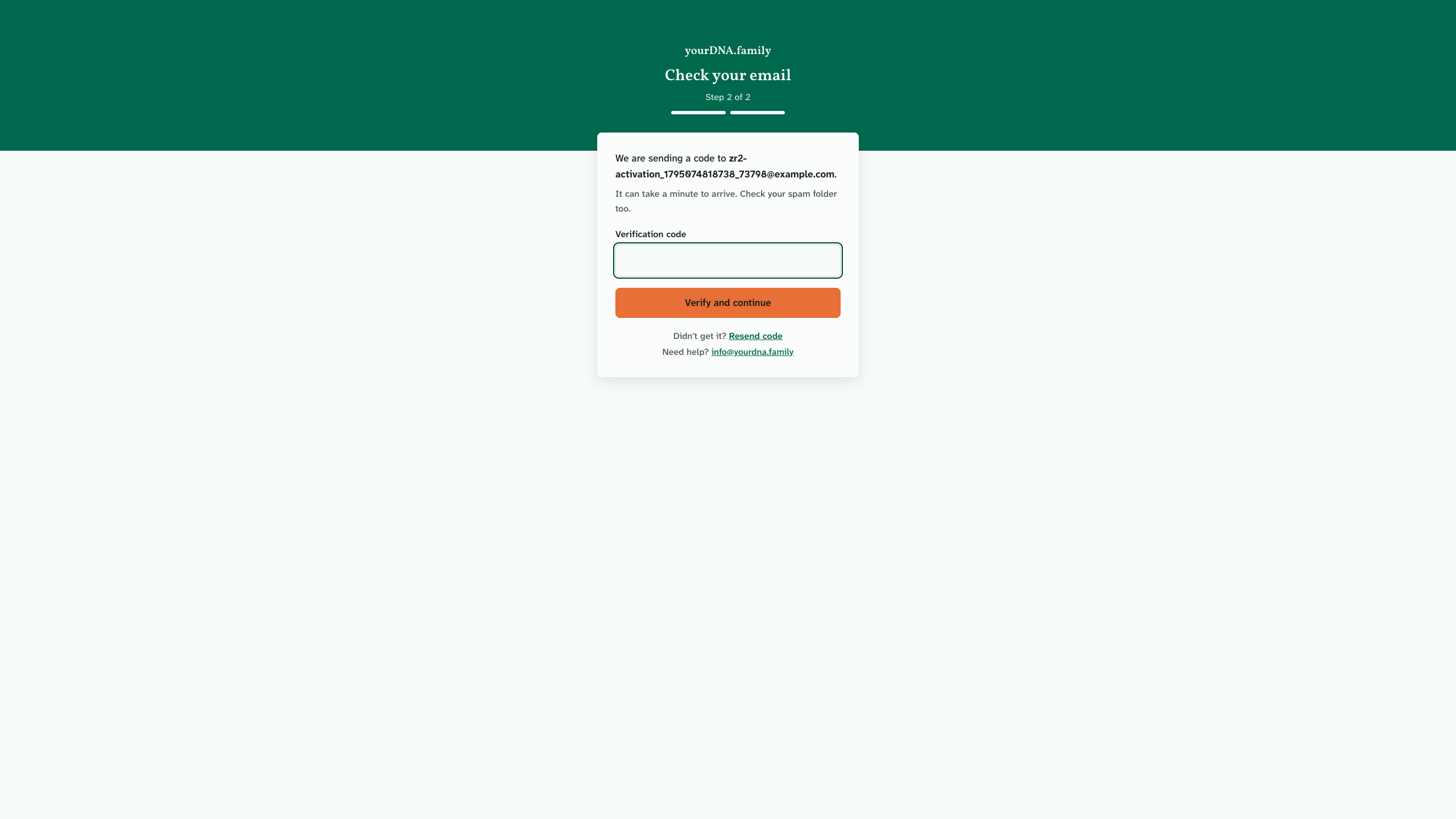
If the email has not arrived after a minute, check your spam or junk folder. If you still need a code, choose Resend code on the verification screen. Use the code from the newest email.
Install the app and sign in
If you created your account inside the app, you can continue there after email verification. If you signed up on the website, open the app on your computer next.
- If you signed up on a phone or tablet, open the setup email on your computer.
- Follow the download and setup guide for your computer.
- Open yourDNA.family. Enter the email address you used to create your account.
- Choose Log In.
- Open the new email with your sign-in code.
- Return to the app and enter the code in Verification code.
Find your first research cards
If you see What is your research goal?, choose the goal that fits your research. Choose Let's start to open the guided tour.
At the end of the tour, choose Start on my own DNA puzzle. Puzzle opens with the Family tree and Raw DNA import cards. See how to follow the tour.
If you already have a DNA test file, open Raw DNA import. Follow the steps to add the file.
Start with a small family tree
You can start with your own record. Add the relatives you know when you have their details.
- In Puzzle, open the Family tree card.
- Save your details if the app asks for them.
- In What do you want to import?, choose Manual to start without a file.
Open Family Tree from the top bar when you are ready to add a relative. If the tree shows only DNA-confirmed people, change the view from DNA to All. This shows relatives you add before you confirm them with DNA.
In the example below, Emery has started with one record. Family Tree is active in the top bar. All is selected near the zoom controls.
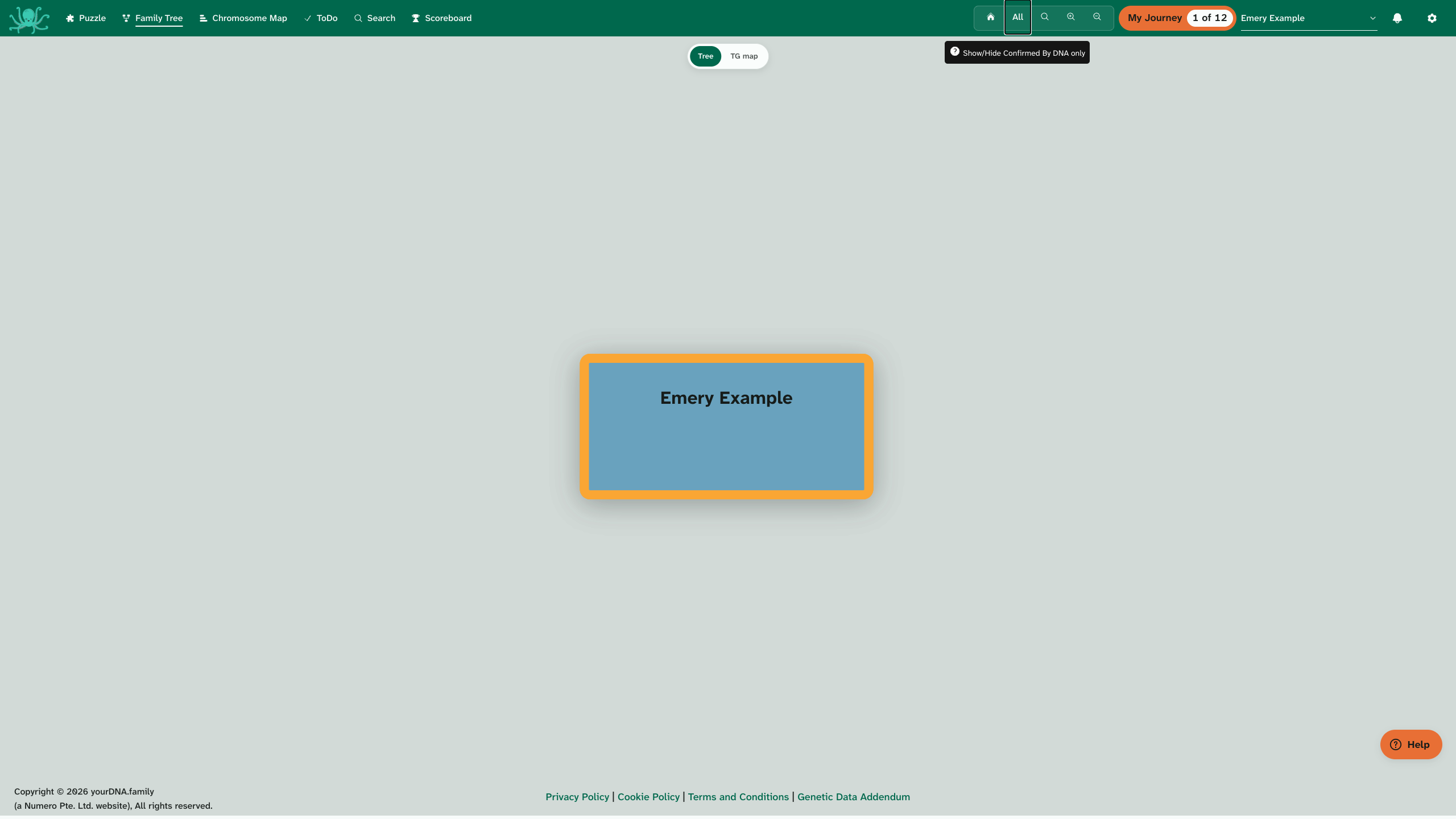
Open the example at full size.
You can also bring in a tree from another genealogy program if you saved it as a GEDCOM file.
If you stopped partway through registration, see how to continue after you sign up.