How to add a half-sibling to my family Tree?
Last updated
Question:
How to add a half-sibling to your Family Tree?
Answer:
What is a half-sibling? half-siblings are basically siblings related by blood through one parent. As such, the process of adding a half-sibling can be split up into adding a child to the common parent and adding the half-sibling's other parent. This "How to" will primarily be going through the steps to create the half-sibling. To add the half-sibling's other parent, check out the article How to add a parent to my Family Tree.
Step 1:
Navigate to your family Tree View using the navigation bar at the top of the screen.

Step 2:
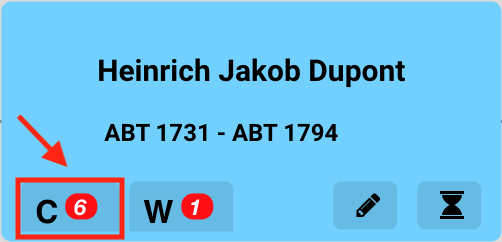
Find the common parent to the half-siblings. Click on the "C" (Children) button.
If the person already has a child added (there will be a number on the right of the button), proceed to step 2A before moving to step 3.
Step 2A:
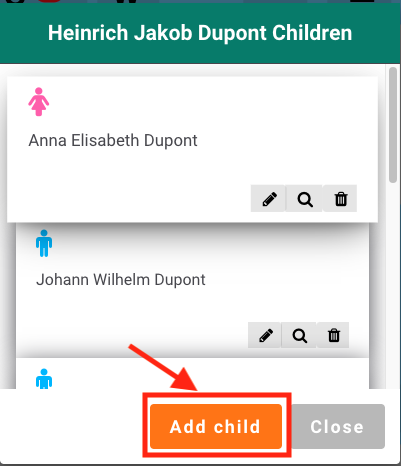
Click on the "Add Child" button to add a child.
Step 3:
There are 3 ways to add a child:
A) Adding a new person. Go straight to Use Case A: Creating a new individual
B) Adding one of your DNA cousins. In this case, click on the "DNA Cousins" button and proceed to Use Case B: Adding one of your DNA Cousins as a Child
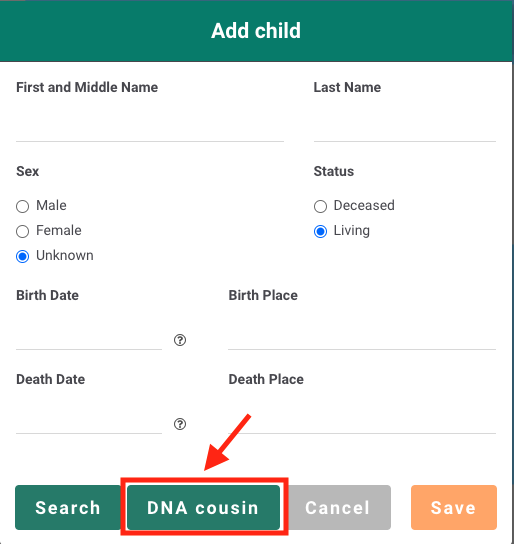
C) Searching for existing people. In this case, there are two types of people you can search for:
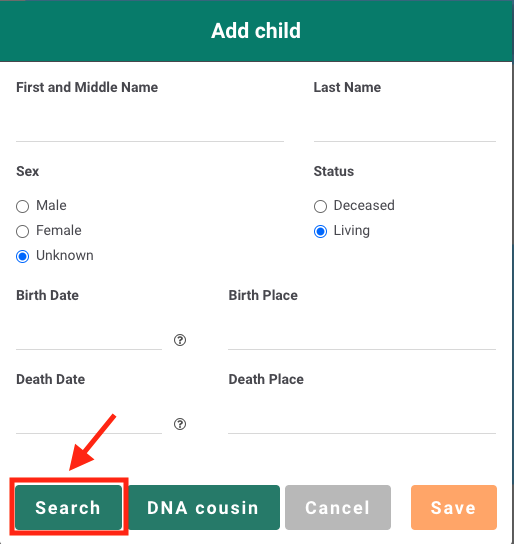
- People that you have created. Click on the "Search" Button and proceed to Use Case C: Adding an existing child you have created
- People that your DNA cousins have created. Click on the "Search" Button and proceed to Use Case D: Adding an existing child your DNA cousins have created
Use Case A: Creating a new individual
Use Case A - Step 1:
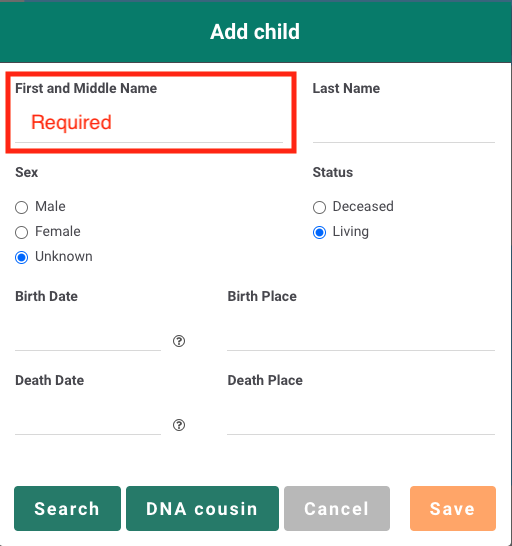
Key in the relevant information of the child you wish to add. Note that you have to enter a first name before you are allowed to add a new child. You can leave the other fields blank if you do not currently have the information.
Use Case A - Step 2:
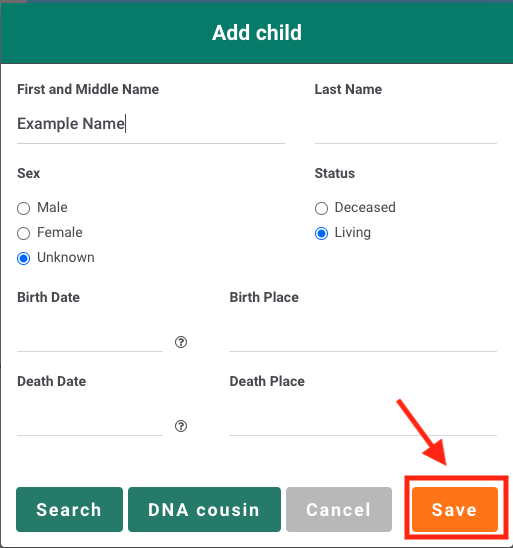
Click on the "Save" button. The child should now be added to your Family Tree.
Use Case A - Step 3:
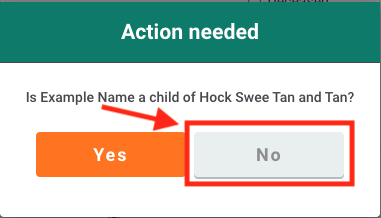
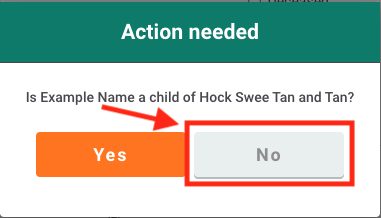
Click on the "No" button. The half-sibling should now be created.
Use Case B: Adding one of your DNA Cousins as a Child
Use Case B - Step 1:
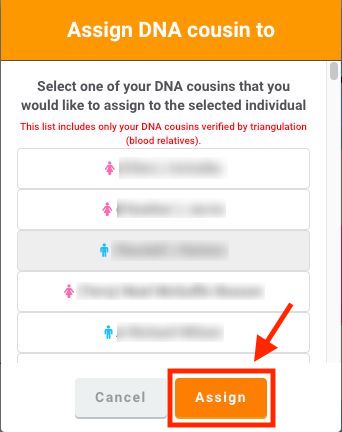
You will be shown a list of your DNA cousins sorted in alphabetical order (A to Z). Select the correct DNA Cousin to add as a child. Please check that this DNA Cousin is correct. Once you are sure, click on the "Assign" button.
Use Case B - Step 2:
You will be prompted to confirm whether the child is a child of both parents. Click on the "No" button. The half-sibling should now be created.
Case C: Adding an existing child you have created
Use Case C - Step 1:
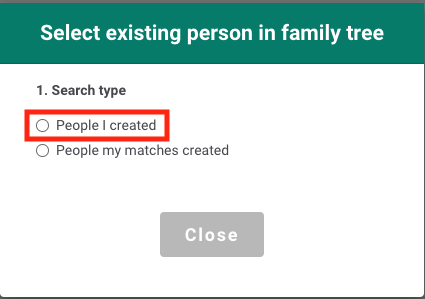
Select the "People I created" option.
Use Case C - Step 2:
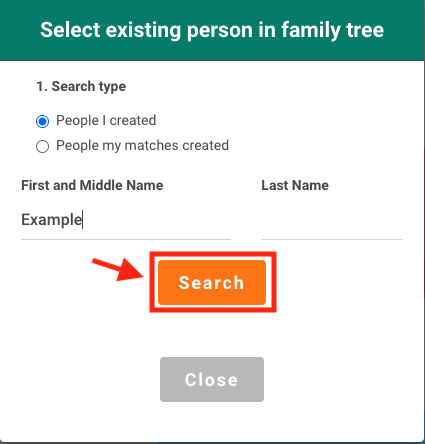
Enter the details of the child and click on the "Search" button.
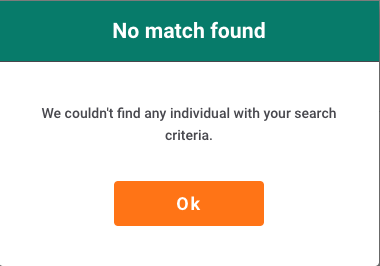
If there are no matches for your search, the following message will appear. Click "Ok" to try again.
Use Case C - Step 3:
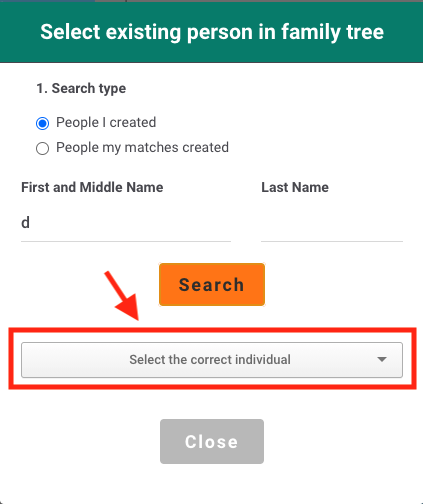
Once there are matches to your search, click on the drop-down box labeled "Select the correct individual". You will be shown a list of matches. Please select the correct child to add.
Use Case C - Step 4:
Once you have chosen the right individual. Click on the "Confirm" button.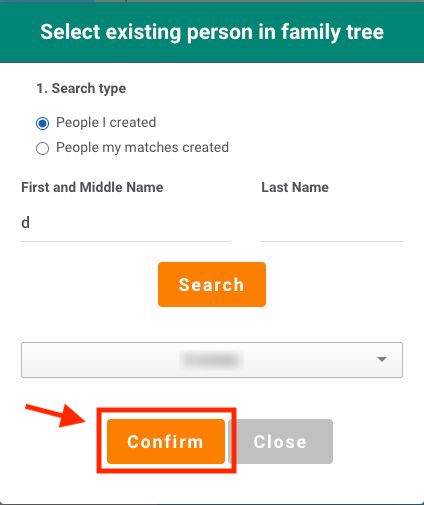
Use Case C - Step 5:
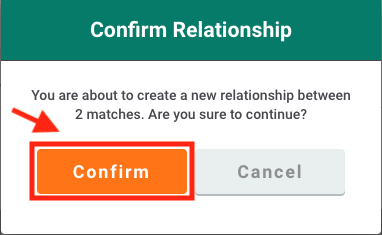
You will be prompted to confirm your selection again. Please make sure that the child you wish to add is correct.
Click on "Confirm" again to add the child. The child should now be added to your Family Tree.
Use Case D: Adding an existing child your DNA cousins have created
Use Case D - Step 1:
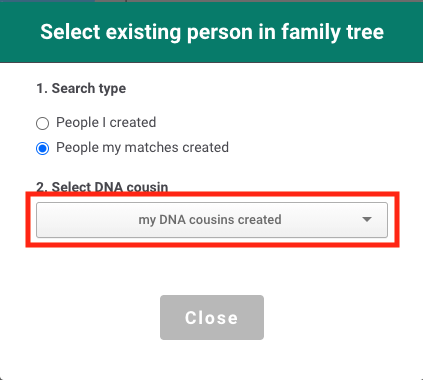
Click on the "People my matches created" option
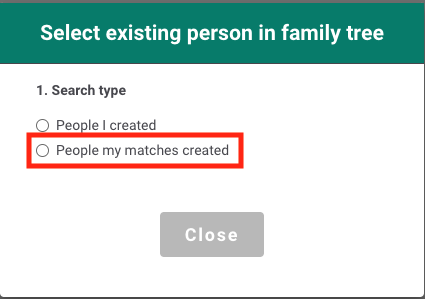
Use Case D - Step 2:
Click on the dropdown box labeled "my DNA cousins created". You will be shown a list of your DNA cousins. Please select the correct DNA cousin who has created the child you want to add.
Use Case D - Step 3:
Once you have selected a DNA cousin. Enter the name of the child you wish to add and click on the "Search" button.
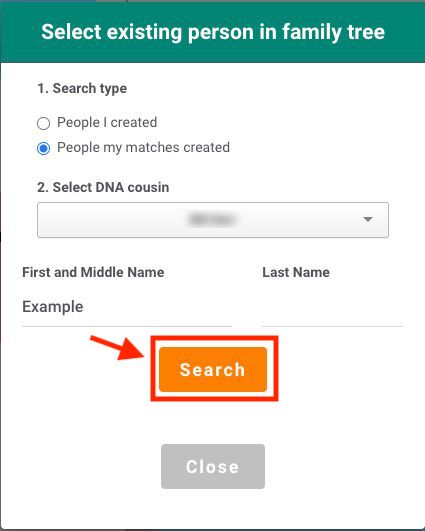
If there are no matches for your search, the following message will appear. Click "Ok" to try again.
Use Case D - Step 4:
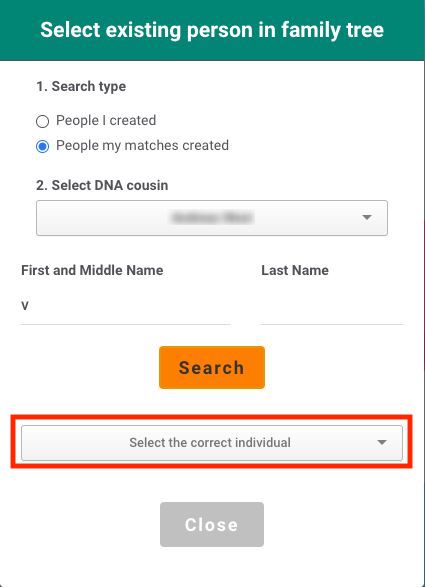
Once there are matches to your search, click on the drop-down box labeled "Select the correct individual". You will be shown a list of matches. Please select the correct child to add.
Use Case D - Step 5:
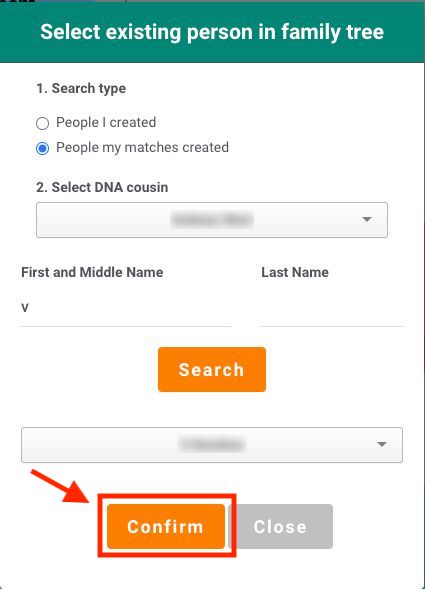
Once you have chosen the right individual. Click on the "Confirm" button.
Use Case D - Step 6:
You will be prompted to confirm your selection again. Please make sure that the child you wish to add is correct as this will alter your Family Tree.
Click on "Confirm" again to add the child. The child should now be added to your Family Tree.