How to add a spouse to your Family Tree
Last updated
Add a spouse from the card of the person they married. Before you start, check whether the spouse already has a record in your tree.
Open the spouse options
- Choose Family Tree in the top bar.
- If a message says You’re seeing DNA-confirmed people only, choose Understood.
- If the top bar shows DNA, choose it to switch to All. This shows the people you added.
- Find the card of the person whose spouse you want to add.
- Move your pointer over that card to open its menu. To use the keyboard, press Tab until the card has focus, then press Enter.
- Choose Add wife or Add husband, whichever the menu shows. If you see Wife or Husband with a number, open that list first. The add button is at the bottom.
In this example, we start from Emery Example's card to add Casey Arbor as his wife.
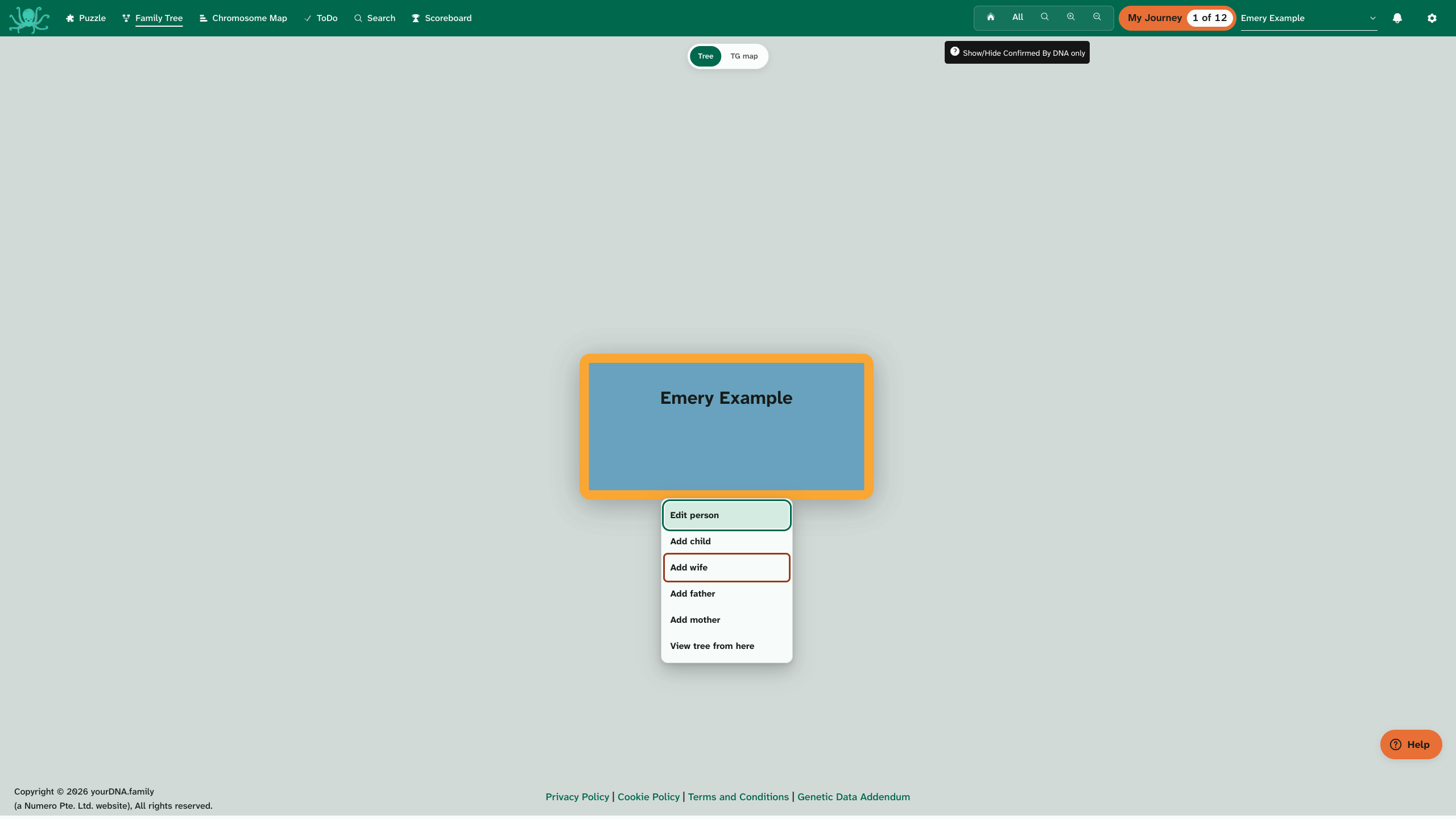
Open the Add wife action at full size.
Choose a person
In Who do you want to add?, choose the option that fits the person.
- Choose New person if the spouse has no record in your tree and has not taken a DNA test.
- Choose Existing person if the spouse already has a record in your tree and has not taken a DNA test. Check the name and dates before you confirm the record.
- Choose DNA cousin to open the list of matches available for this link.
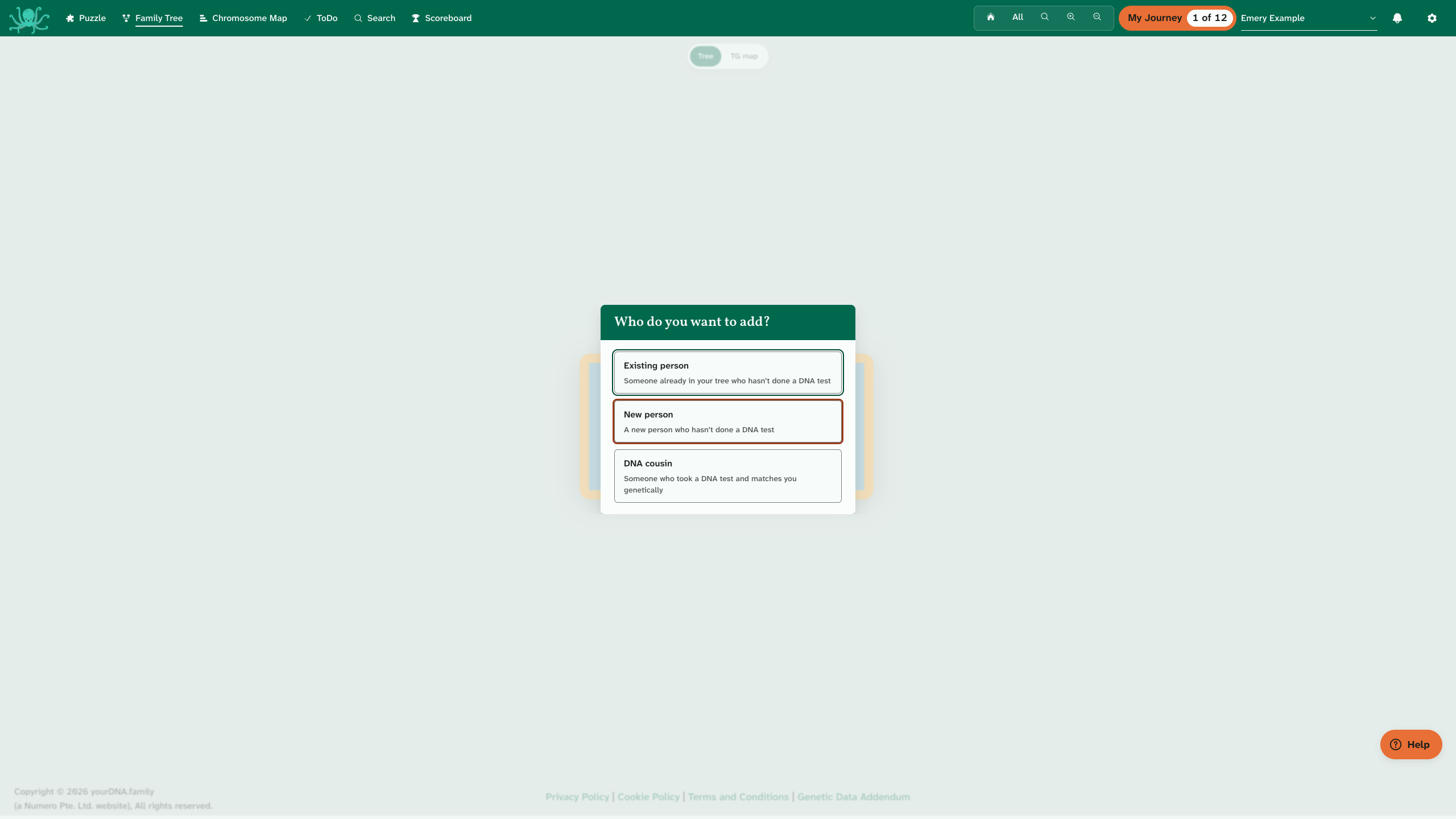
Open the person options at full size.
If the list says No cousins found, or your spouse's name is absent, choose Cancel. A person can appear in your DNA matches and still be absent from this list. Write to support before you create a second record for that person.
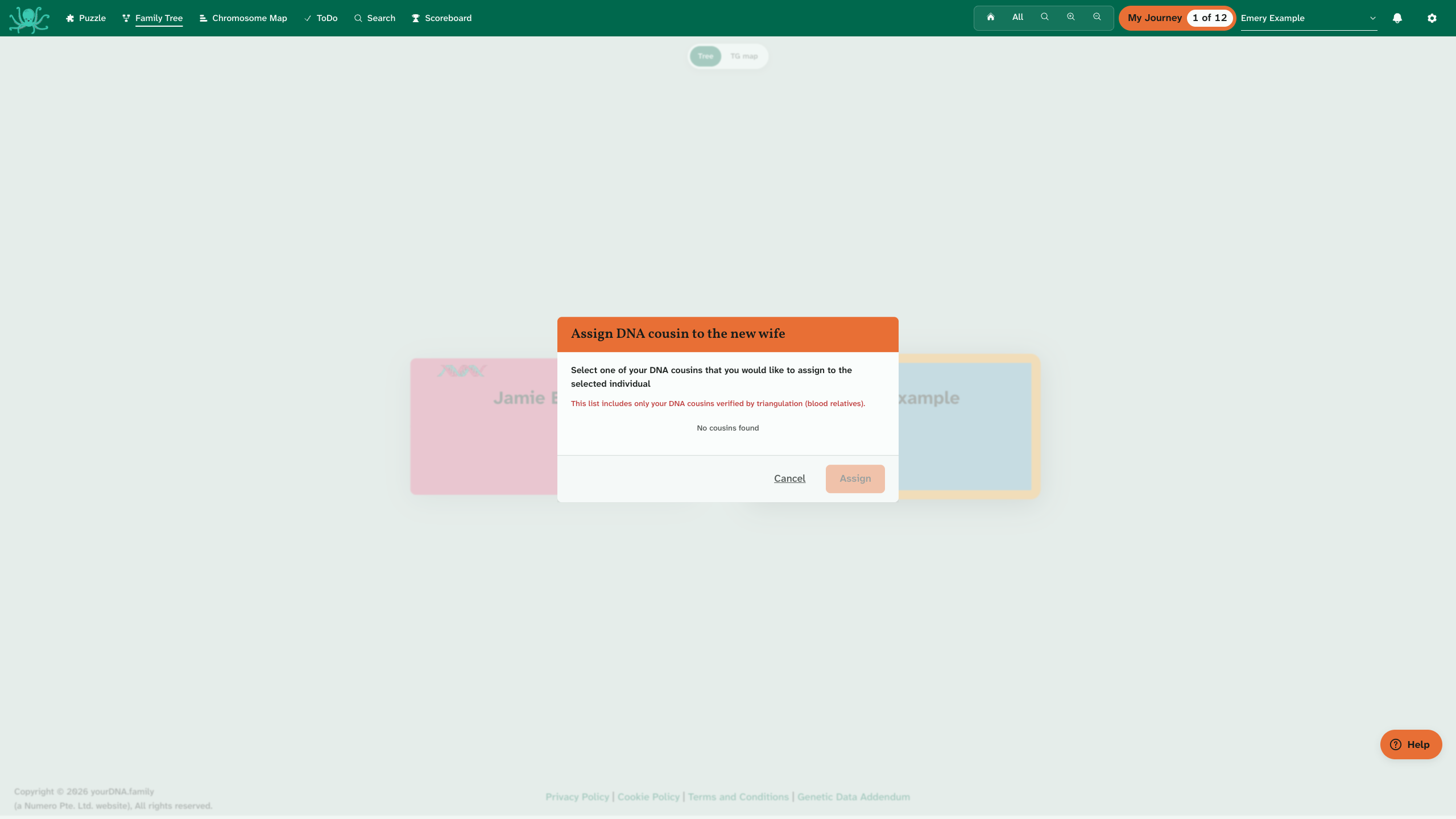
Open the empty match list at full size.
Enter and save a new person
- Enter the person's name in First and Middle Name and Last Name.
- Add the birth date if you know it. You can enter just the year, as shown in the example.
- Review the details you entered. Choose Save at the bottom of the form.
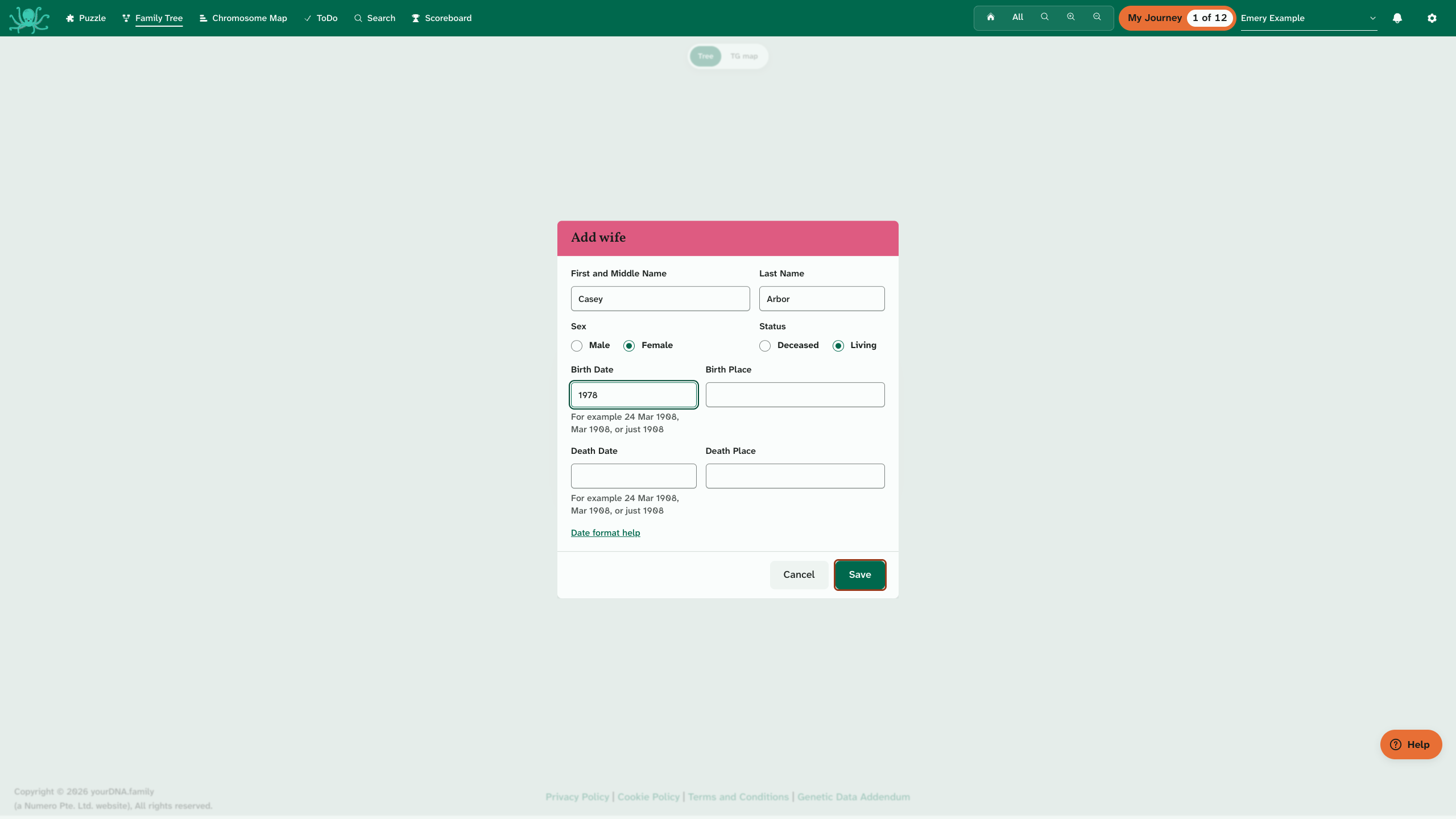
Open the Save example at full size.
Link a spouse who already has a record
- Choose Existing person, then People I created.
- Enter the first and last names, with at least three characters in each field. Choose Search.
- Open the list below Search. Check the name and any dates shown. Choose the record, then choose Confirm.
- In Confirm Relationship, check both names again. Choose Confirm to save the link.
In this example, we start from Emery Example's card and choose Add husband to find Avery Arbor.
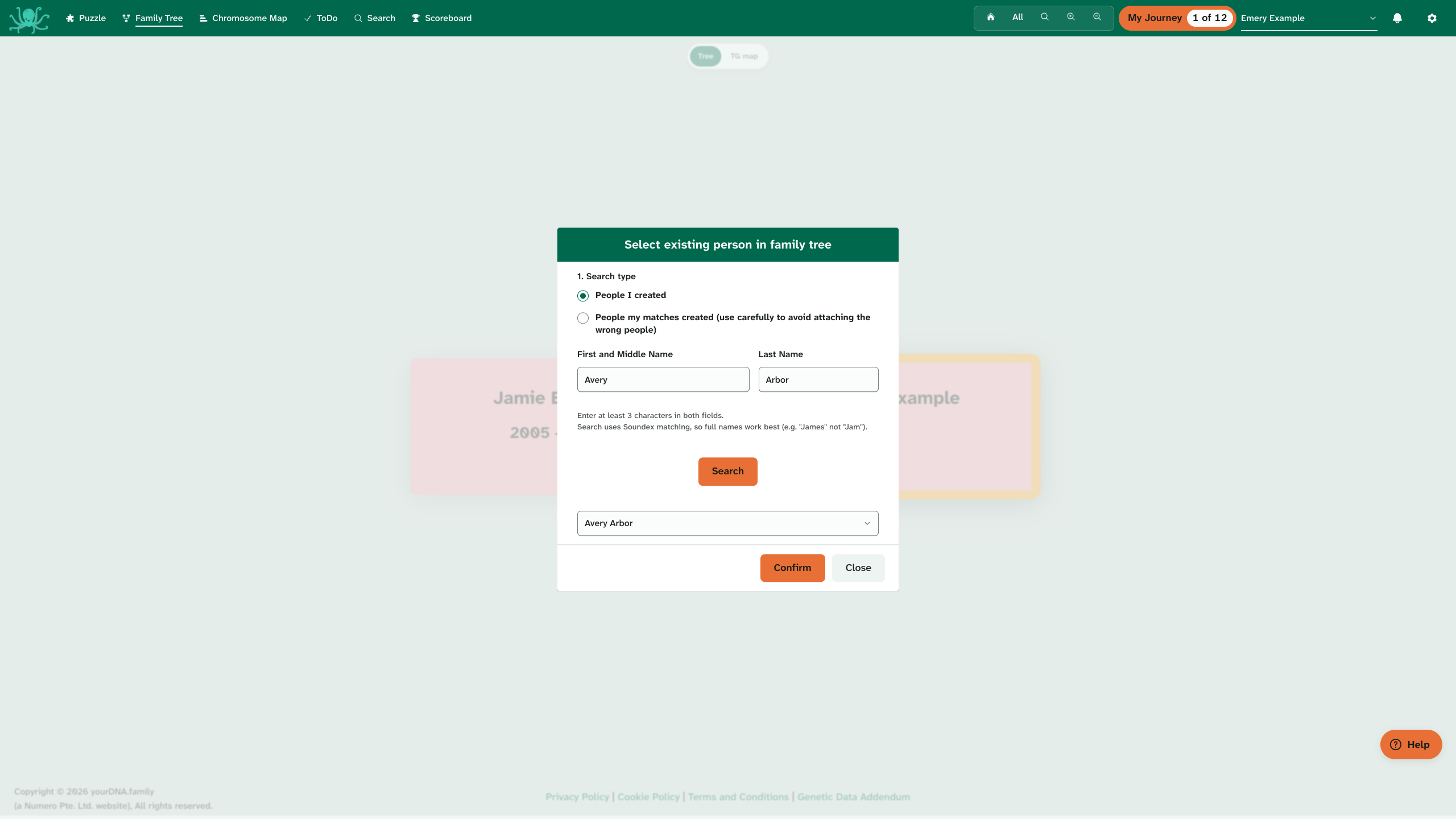
Open the existing spouse search at full size.
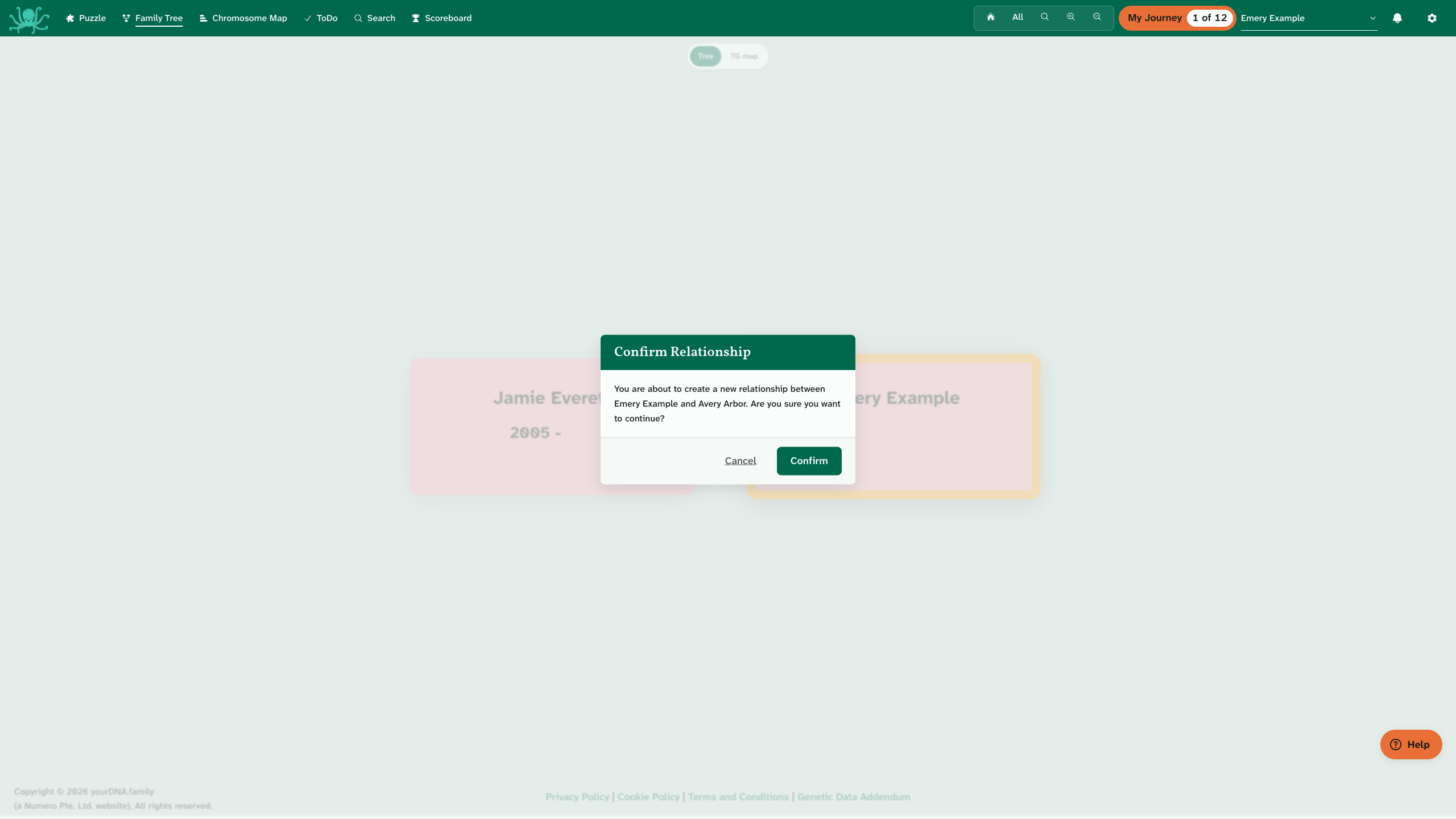
Open the relationship confirmation at full size.
Link a spouse from a DNA match’s tree
Use this option when one of your DNA matches created the spouse’s record. You need to know which match created it.
- Choose Existing person.
- Choose People my matches created. Select the match who created the spouse’s record.
- Enter the spouse’s first and last names. Choose Search.
- Select the spouse’s record and choose Confirm.
- In Confirm Relationship, check both names. Choose Confirm to save the spouse link.
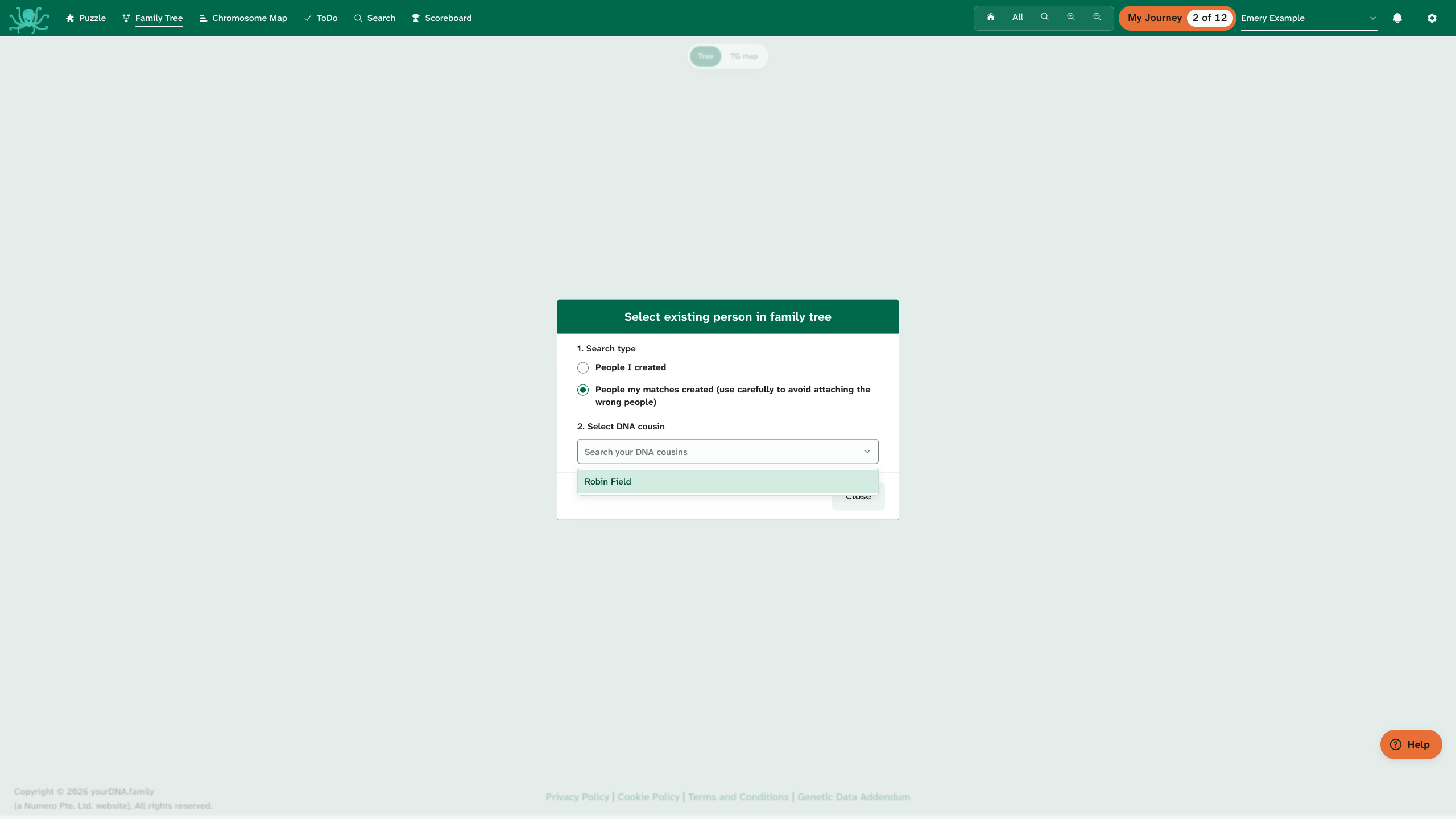
Open the match choice at full size.
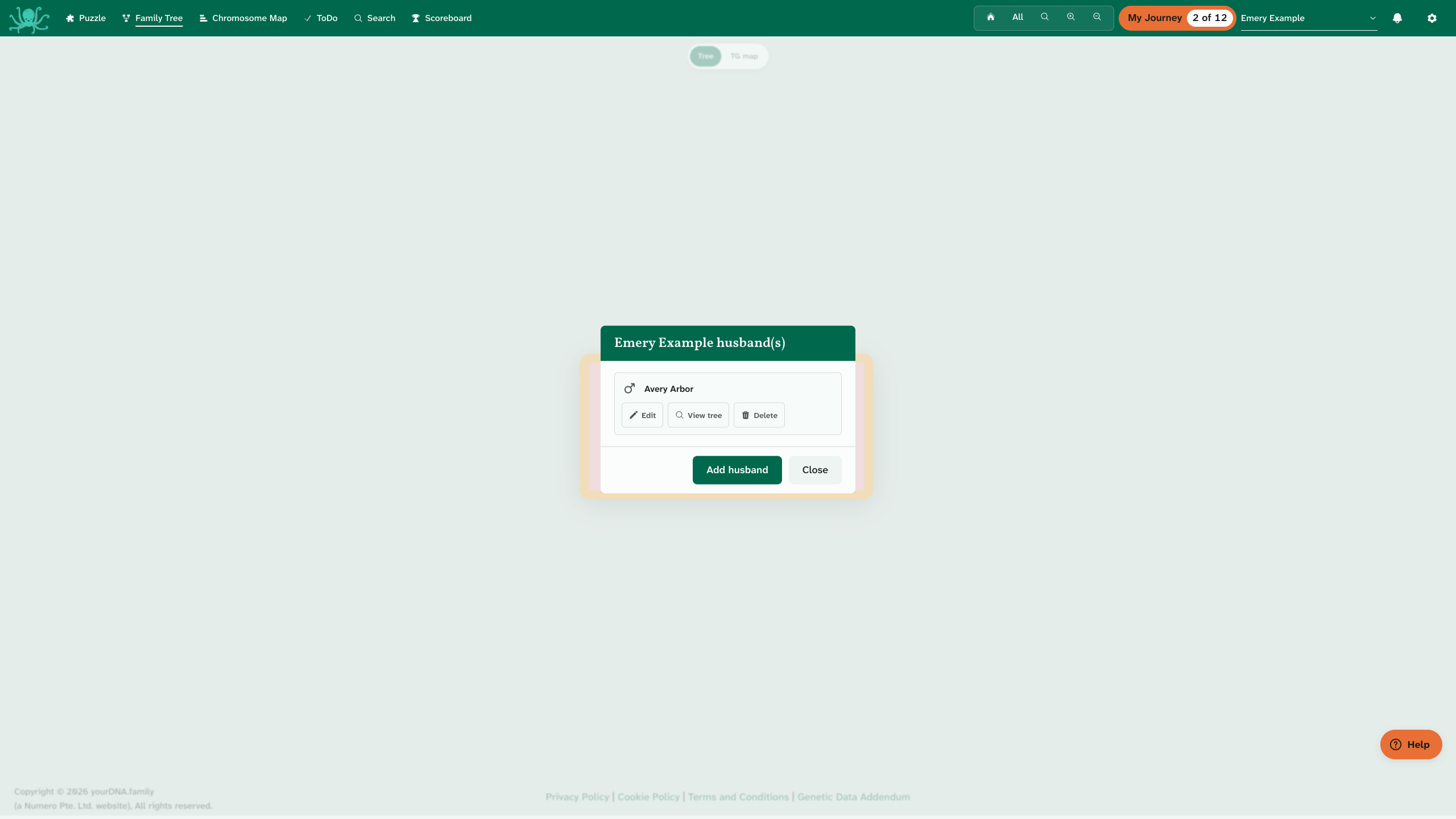
Open the saved spouse result at full size.
Check that the link was saved
- Wait for the tree to refresh. If it moves to the person you linked, choose the house icon in the top bar to return to your own tree.
- Find the card you started from and open its menu.
- Choose Wife or Husband. In the new-person example, Wife now shows a count of 1.
- Check that the name you added is in the list. Then choose Close to return to the tree.
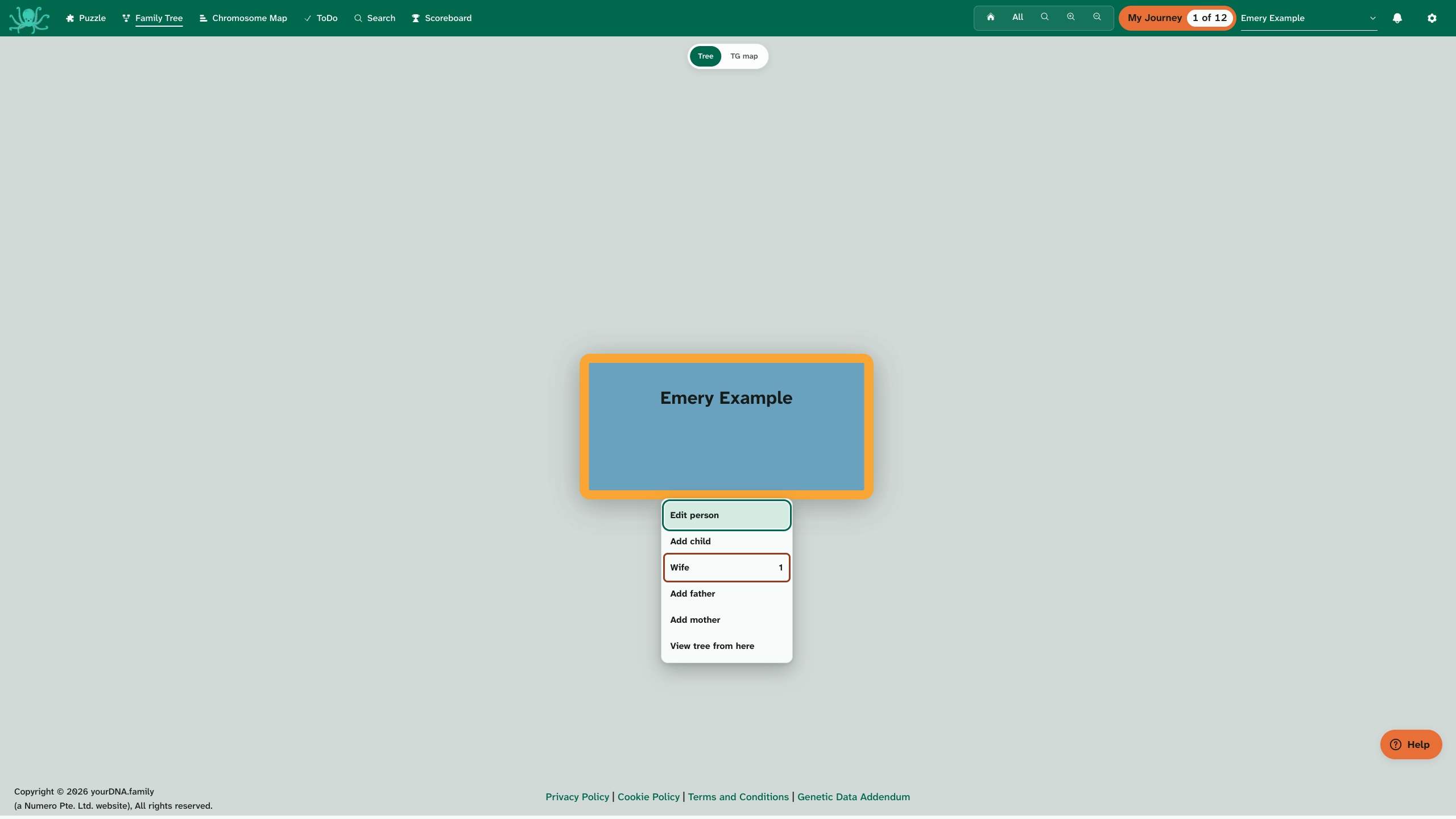
Open the Wife action at full size.
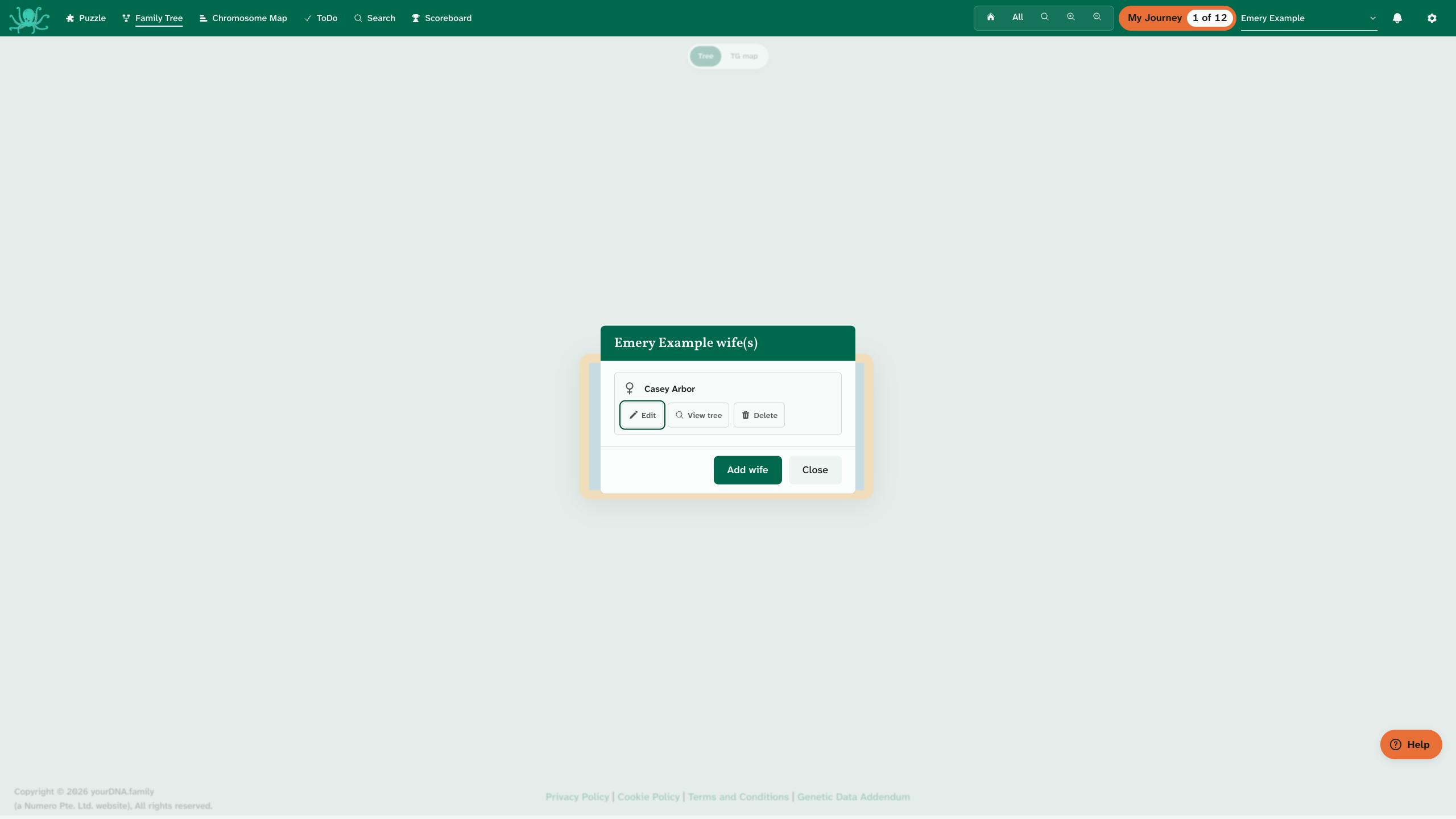
Open the Wife list at full size.
In the existing-person example, the tree moves to Avery Arbor after you confirm. The house icon is near the right side of the top bar, just before All.
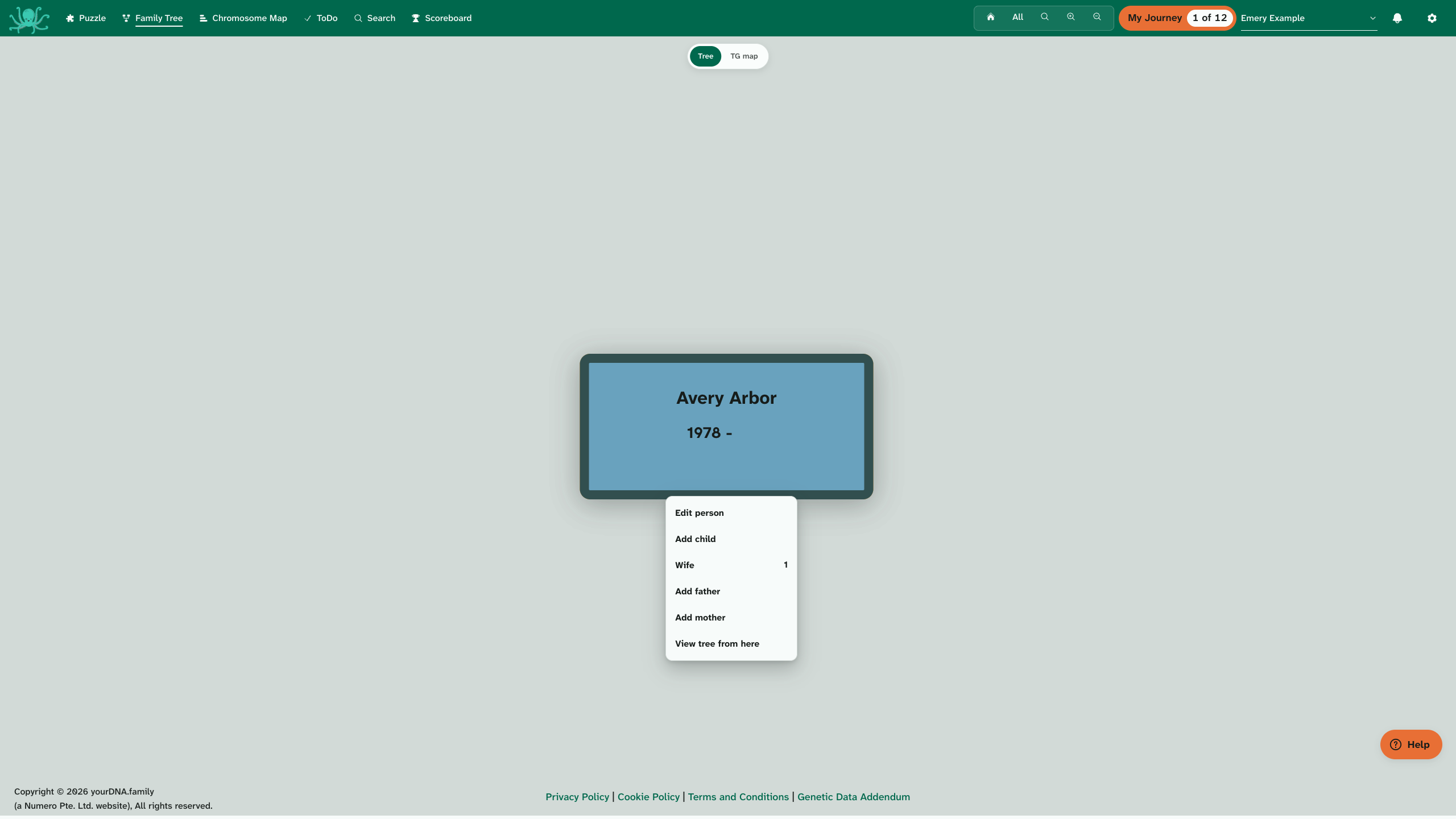
Open Avery's tree at full size.
After you return to Emery's card, Avery appears in her husband list.
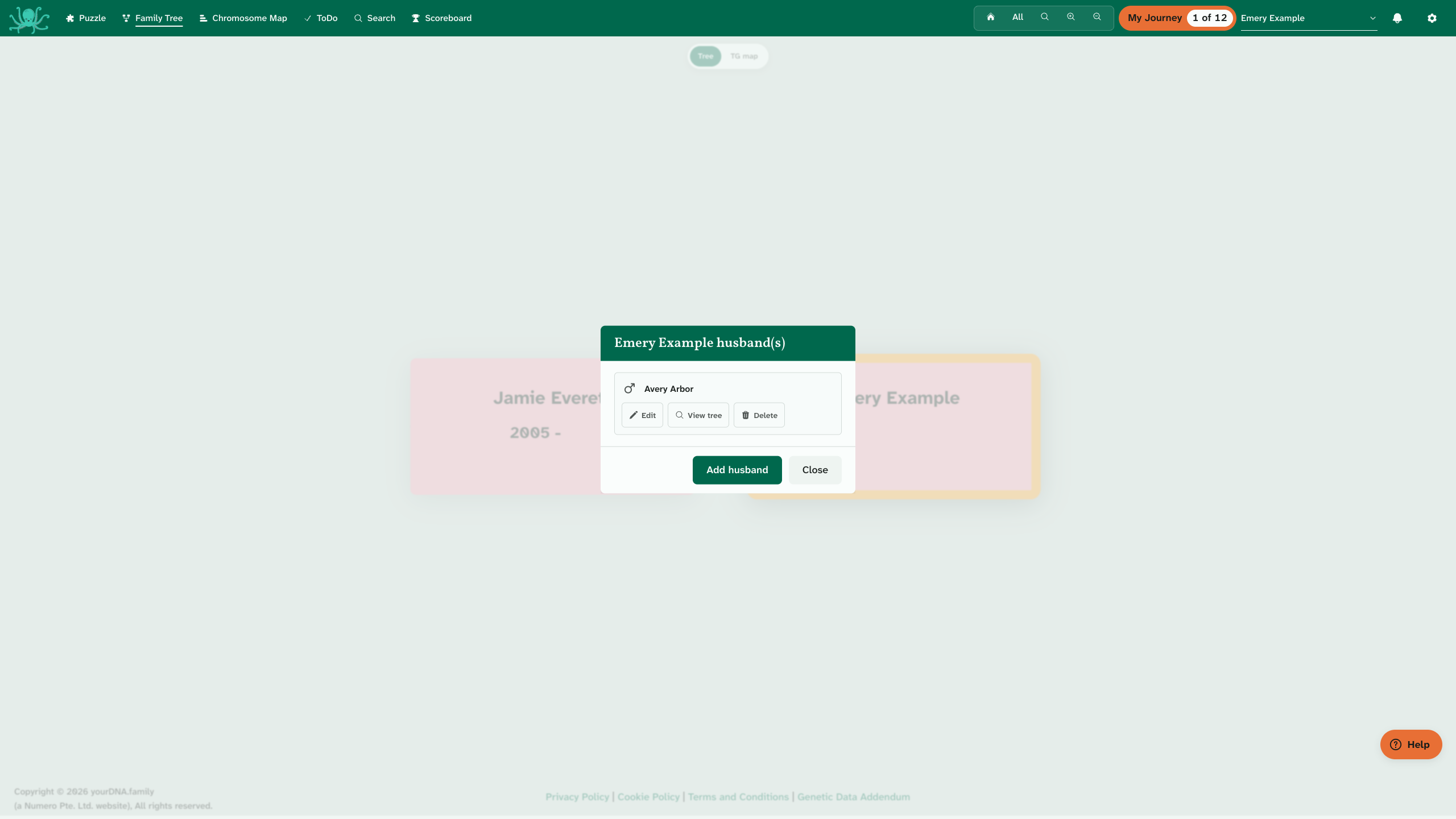
Open the husband list at full size.
Watch how to add a spouse and check the saved link.
If a spouse connection is wrong, read how to remove a spouse before you choose Delete.