How to remove a child from my Family Tree?
Last updated
Use Remove child… when a child is linked to the wrong parent. The app removes the link. Both people stay in your family tree.
To delete a record you own, see how to delete a person.
Find the parent and child
- Choose Family Tree in the top bar.
- If a message says You’re seeing DNA-confirmed people only, choose Understood.
- If the top bar shows DNA, choose it to switch to All. This lets you see people you added.
- Find the card of the parent whose link you want to remove.
- Move your pointer over the parent's card. With a keyboard, use Tab to focus the card and press Enter.
- Choose Remove child….
- If Which child? opens, find the child's name. If shown, check the date of birth or other parent's name.
- Select Choose beside the correct name. This opens a confirmation window.
In this example, Jamie Everett is linked to Emery Example. The outline shows where to choose Remove child….
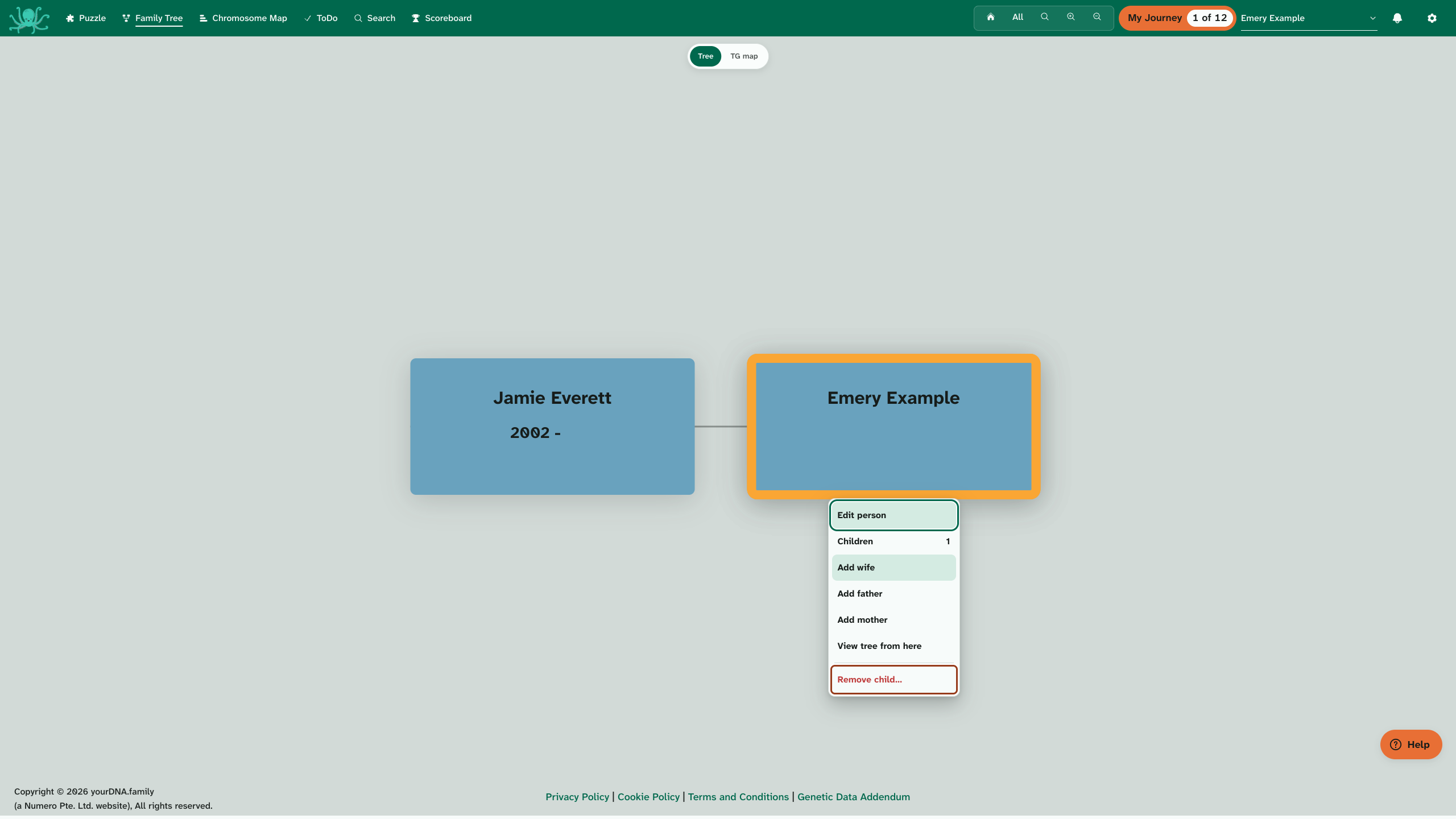
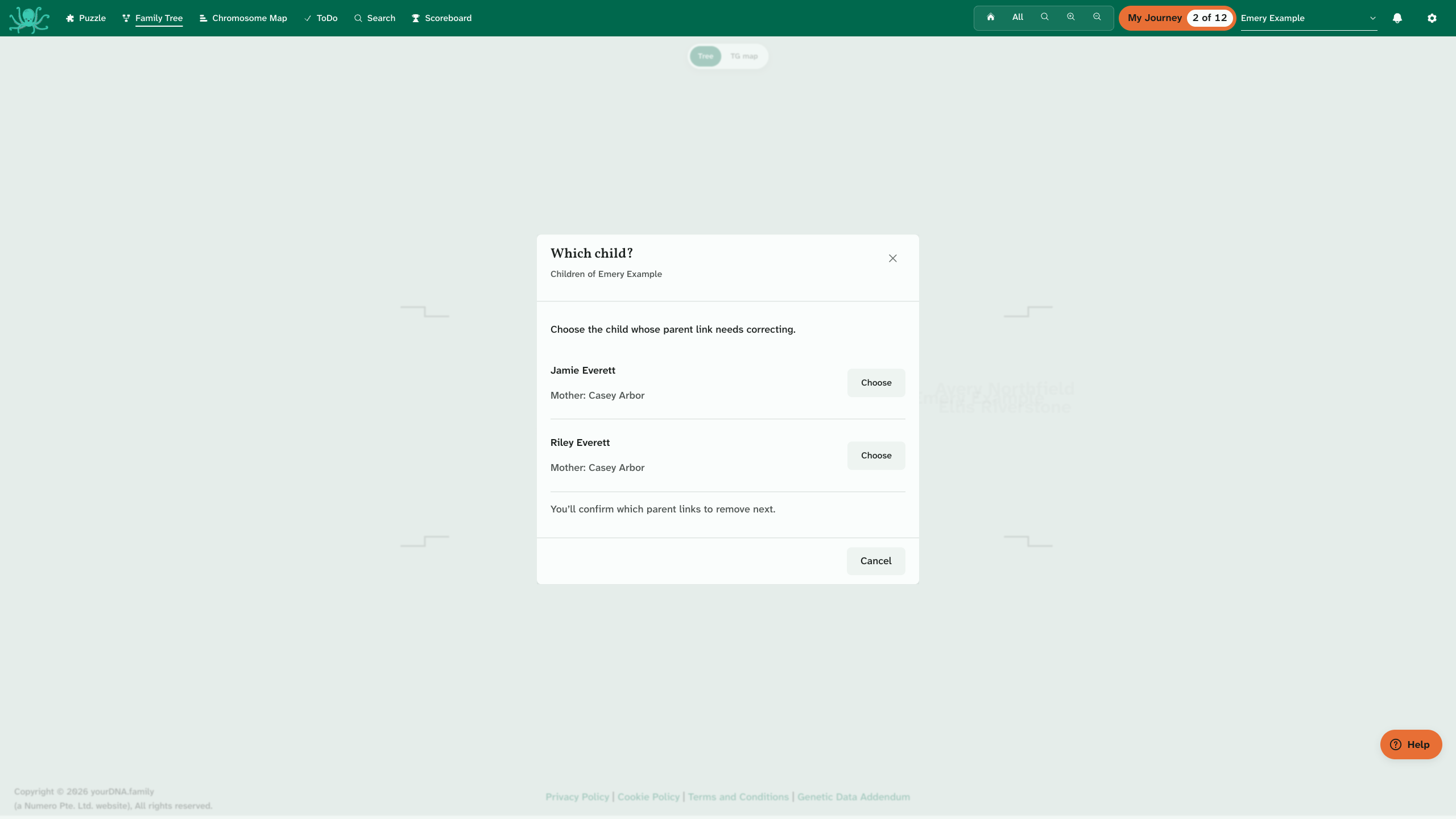
Open the child chooser at full size.
Check the names before you confirm
- Read the parent and child names in the confirmation window.
- If the window offers to remove the other parent's link, leave that box clear to keep the link.
- Choose the button that names the link you want to remove. In this example, choose Remove father link.
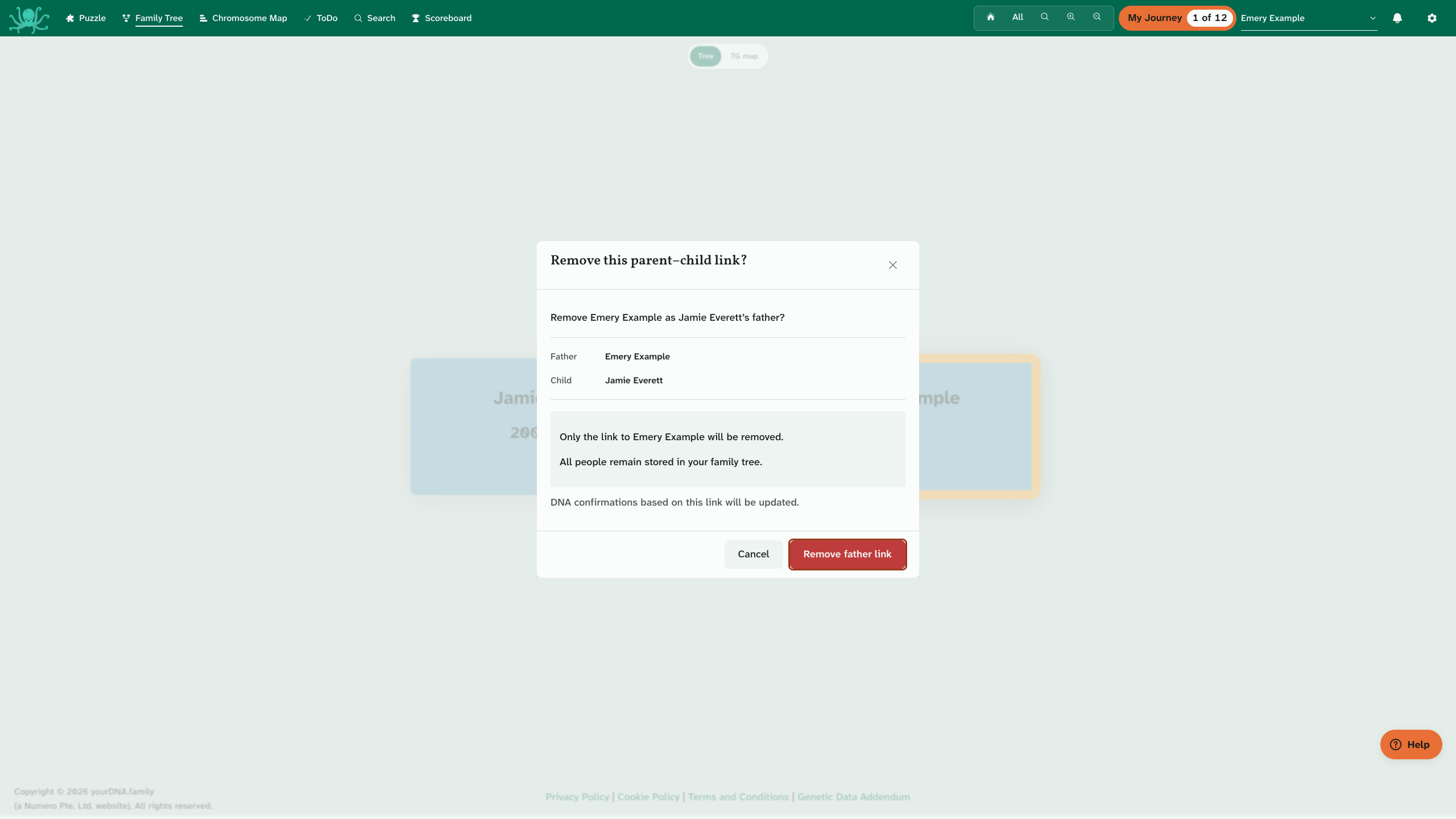
Open the confirmation image at full size.
Check the tree after the change
- Wait for the window to show Parent–child link removed.
- Wait for Refreshing the tree… to clear. If the app offers Refresh tree, select it. Then choose Close.
- Look at the same parent's card. The line that connected the parent and child should be gone.
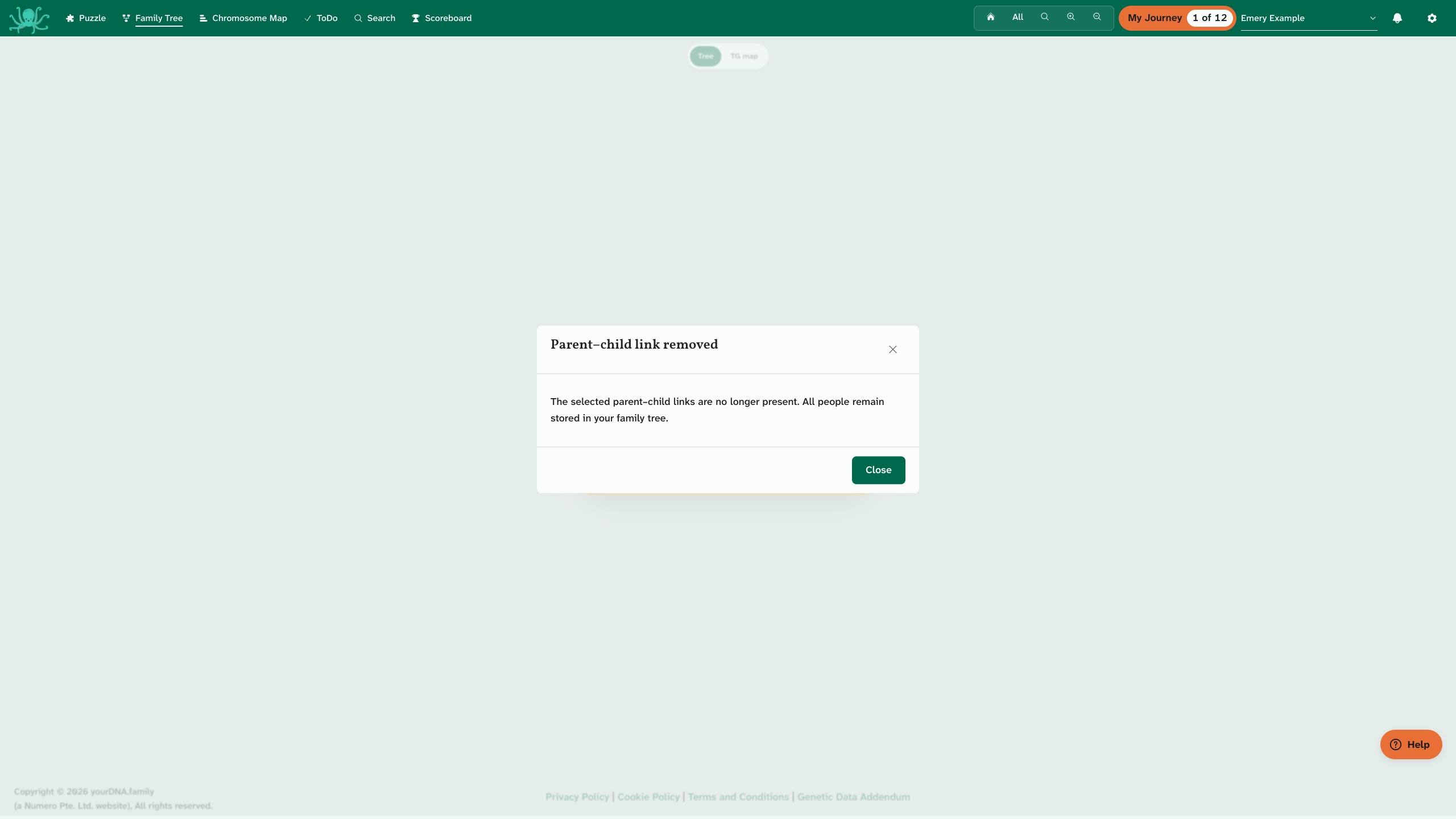
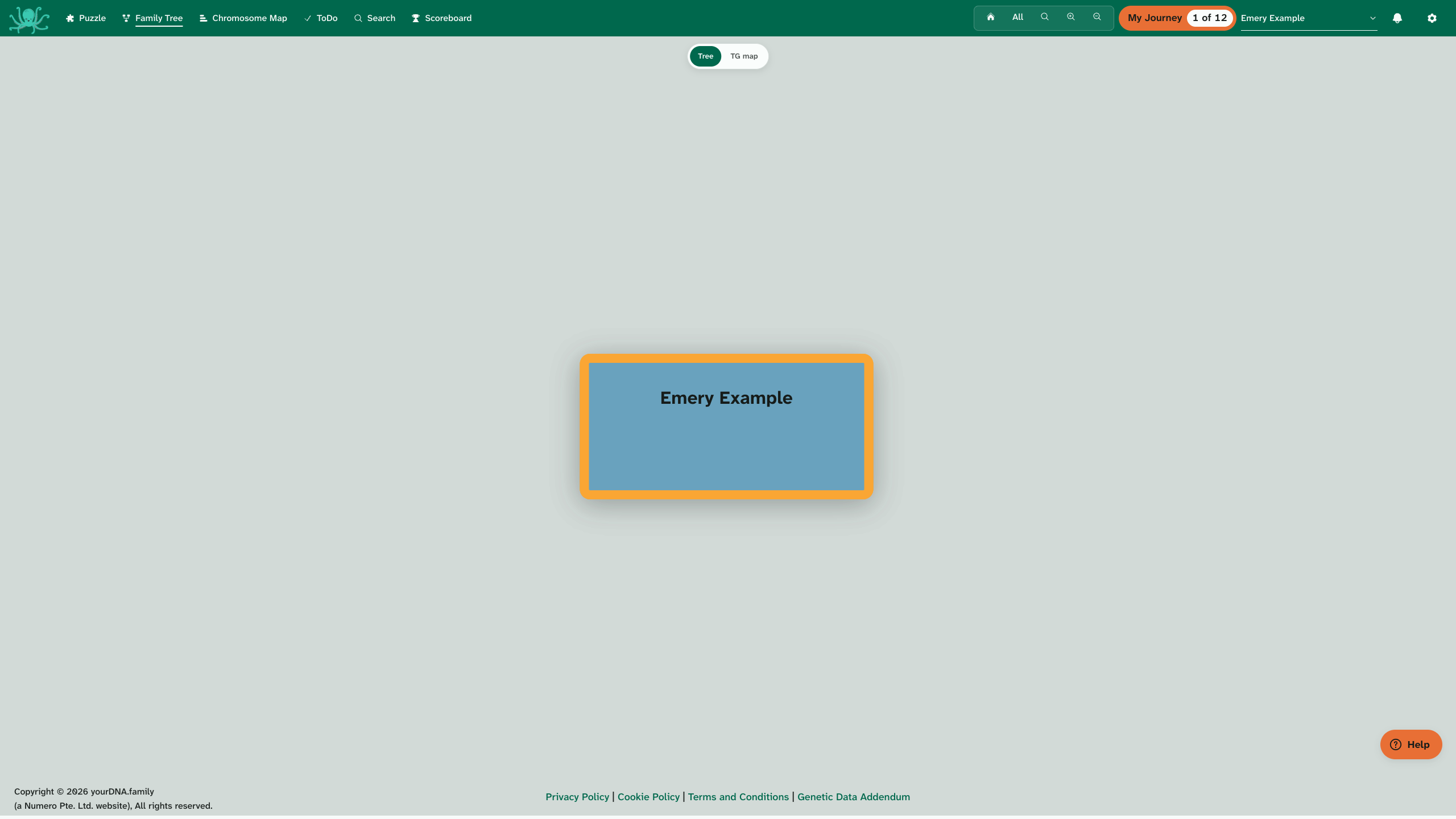
Jamie no longer appears beside Emery. Jamie's record stays in the family tree. If you kept another parent's link, check the child under that parent.
Watch the single-link example and the tree refresh.
If both parent links are wrong
- Check both parents' names in the warning.
- Select the checkbox beside Also remove, followed by the other parent's name.
- Confirm that the window says Both named parent–child links will be removed.
- Choose Remove both parent links.
- Wait for Parent–child link removed and for the tree to refresh. Then choose Close.
In this example, both links for Riley Everett are wrong. The window shows Emery Example as Riley's father and offers a checkbox for Riley's mother, Casey Arbor.
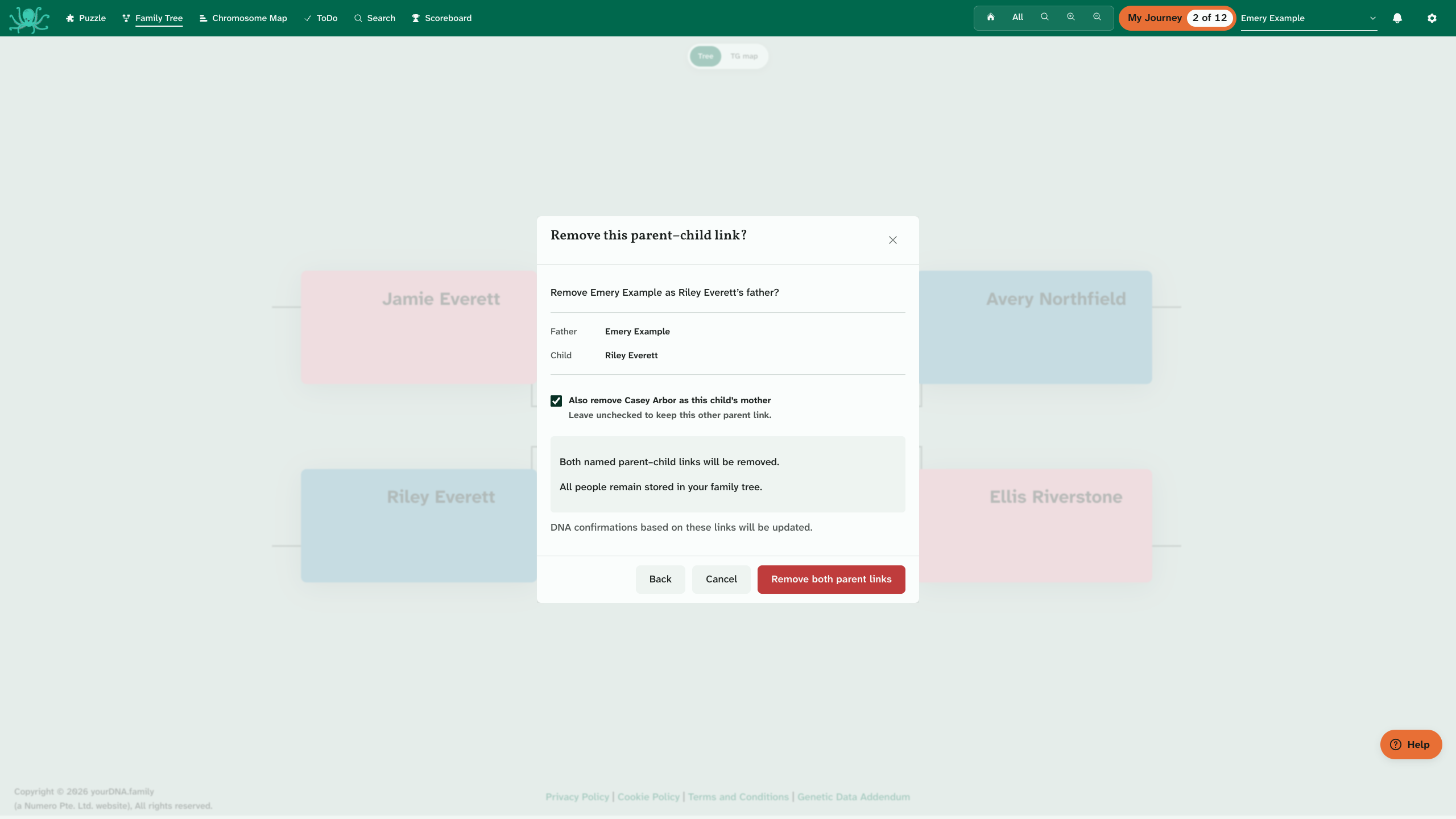
Open the two-link confirmation at full size.
After the refresh, Riley no longer appears next to Emery. Jamie stays linked to Emery. Riley's record stays in the family tree.
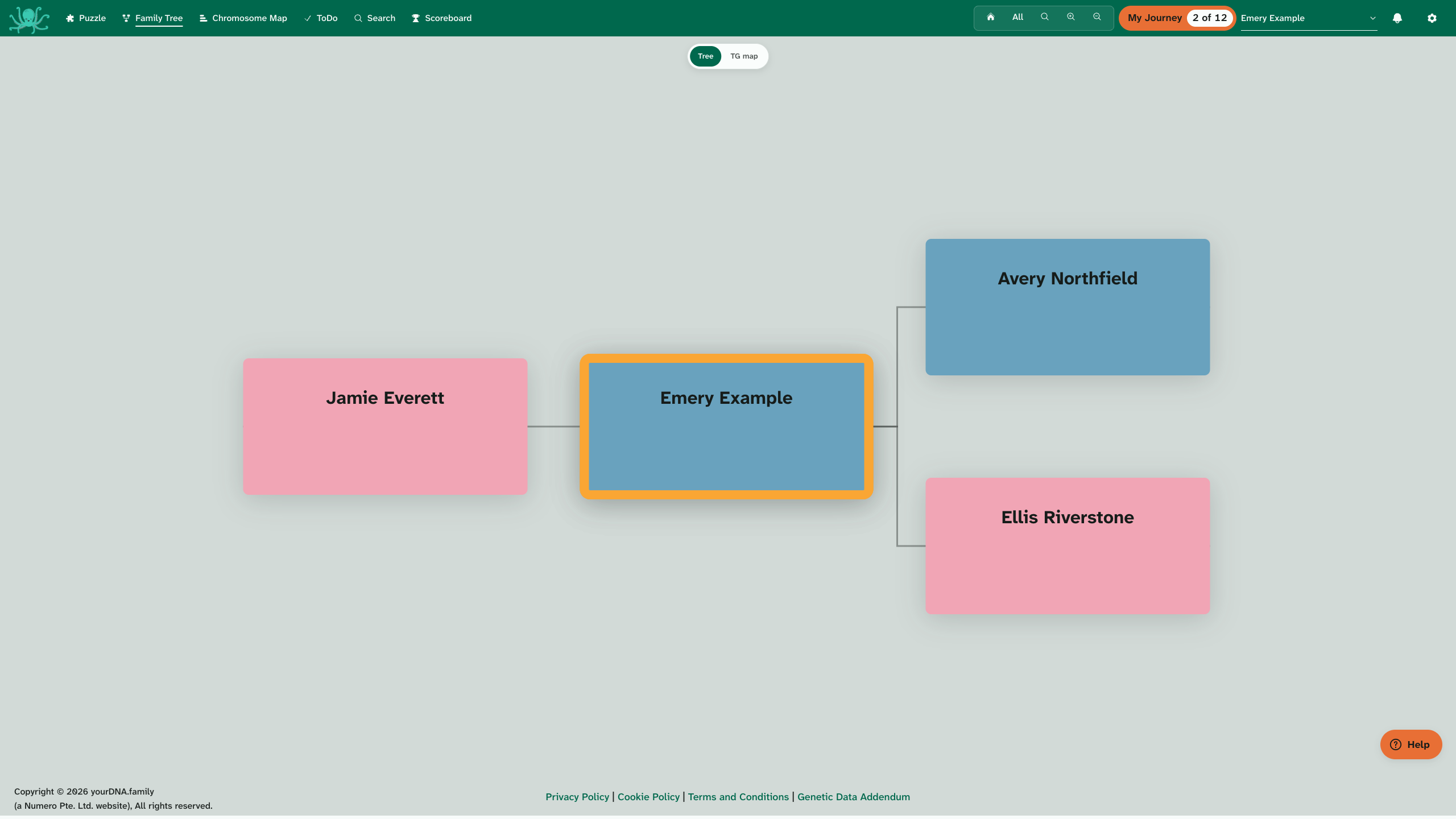
Open the refreshed tree at full size.
Check both parents after the refresh. If a parent's card has a Children list, open it. The child you selected should be absent from that list.
If the app says the link cannot be edited here, write to support.