How to install the "Your DNA family" app on macOS
Last updated
If you're new to installing apps on a Mac, don't worry! It's simple and straightforward. Here are the steps:
Step 1:
Before installing the app, it's best to temporarily pause your antivirus software (if you have one). This step isn't essential, but it can prevent any interference with the installation process.
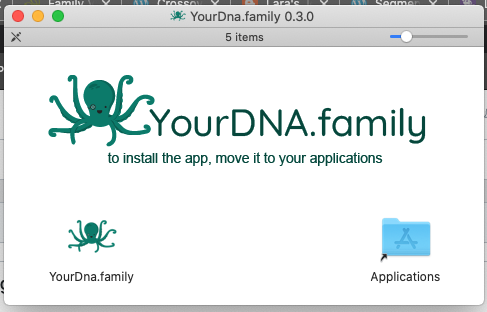
To install the app, double-click on the downloaded file. The app comes from an official Apple Developer, so there's no need to worry about security. After that, drag the app icon to the Applications folder just like you would with any other macOS app.
Step 2:
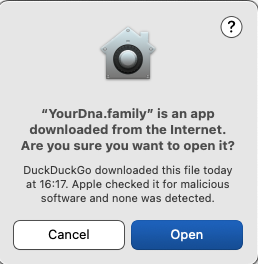
When you launch the app for the first time, it will ask you the following question which is just a security feature of MacOS. It's safe to continue as our app is notarized officially by Apple:
Step 3:
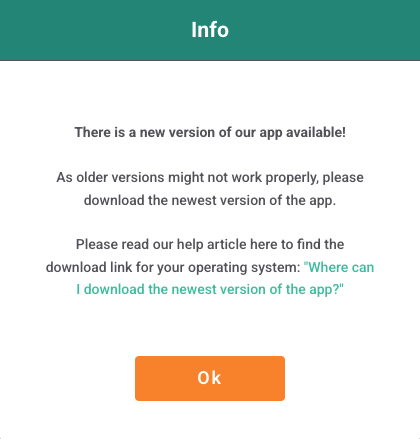
The app checks for updates every 5 minutes and will notify you if a new version is available immediately. Please note that only the most recent version of the app will most likely work as we continuously improve the quality of our app and add new features.
It's therefore mandatory to only use the most recent app version.
Finally, log in using the email and enter the 6 digit security code that was sent to your registered email address immediately. This ensures that no one without authorization can access your account.

Congratulations! You're all set to enjoy the features of our native app.
More in Troubleshooting
- How to add the "Your DNA family" app to the exclusion list for your Windows Antivirus Program?
- How to install the "Your DNA family" app on Linux
- How to install the "Your DNA family" app when you have an Antivirus program
- I've registered as a new user but I'm unsure how to continue
- Installing the "Your DNA Family" App on Windows