How to install the "Your DNA family" app when you have an Antivirus program
Last updated
First of all we recommend that you add our app to the exclusion list of your Antivirus software just for the installation and first start of our app.
-> How to add the "Your DNA family" app to the exclusion list for your Windows Antivirus Program?
As an alternative, you can pause the Antivirus software during installation. However, this will still cause problems during the start of the app when it checks and downloads the newest version automatically!
Our Windows app is digitally signed by Numero Pte. Ltd., the Singapore company that builds Your DNA Family, using a certificate issued by Microsoft. That means Windows can show you exactly who made the app, so you can confirm it really is us before you install. Our macOS app is notarized by Apple.
Step 1:
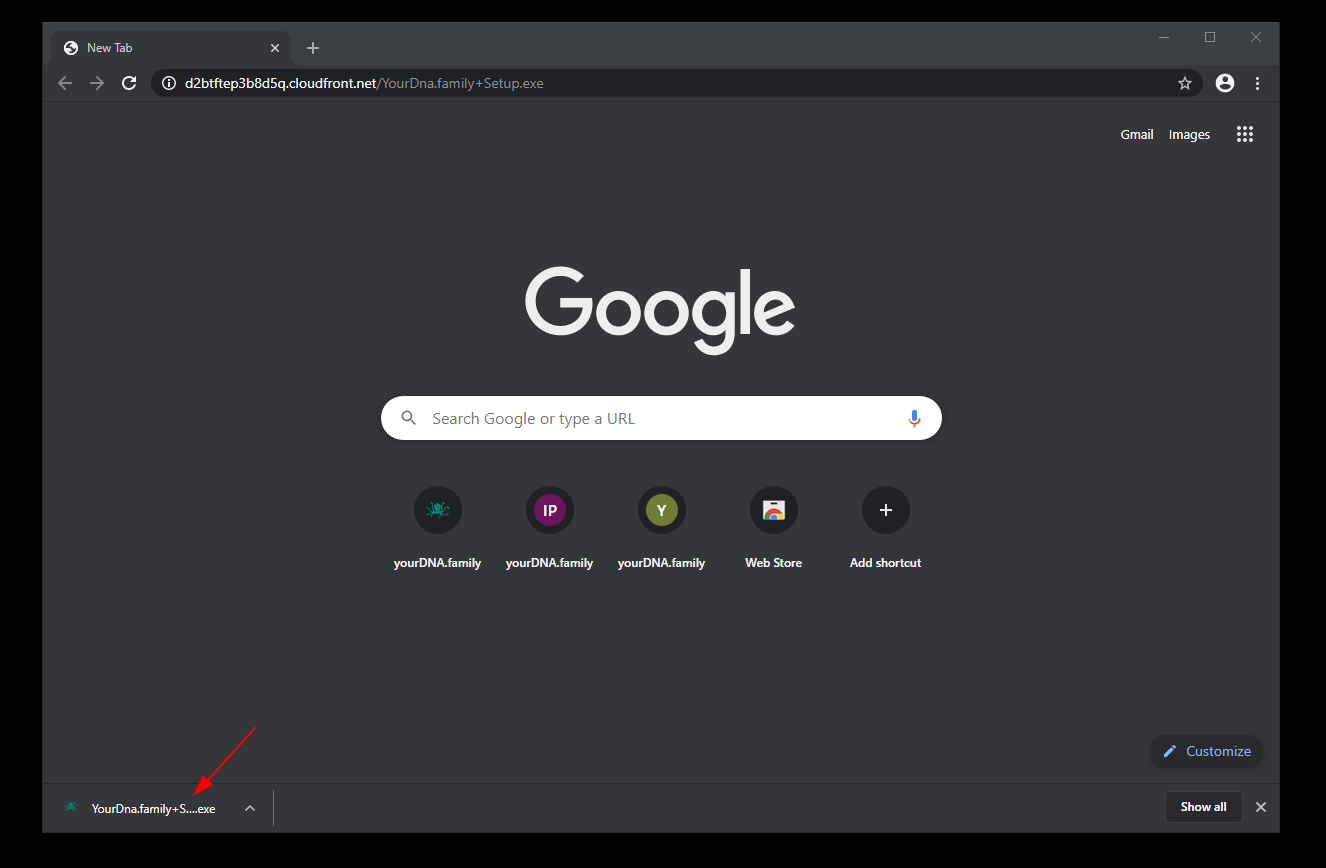
After downloading our Windows app, double click on it:
Step 2:
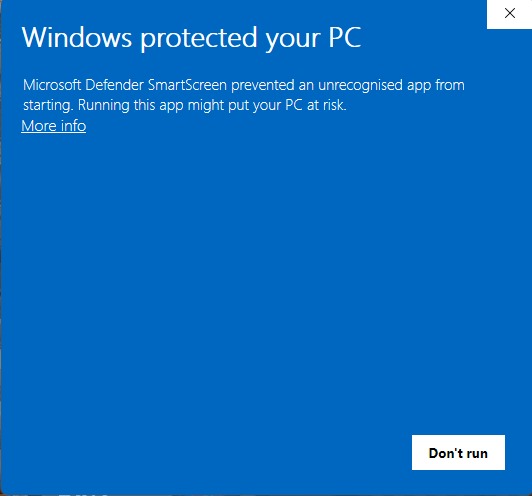
When you see the message "Windows protected your PC", click on "More info". Don't click "Don't run" yet: the "Run anyway" button only appears after you click "More info". On its own, this message doesn't mean anything is wrong. Windows shows it for new apps it hasn't seen downloaded many times yet. The window's background and layout can look slightly different depending on your version of Windows, but the steps are the same:
Step 3:
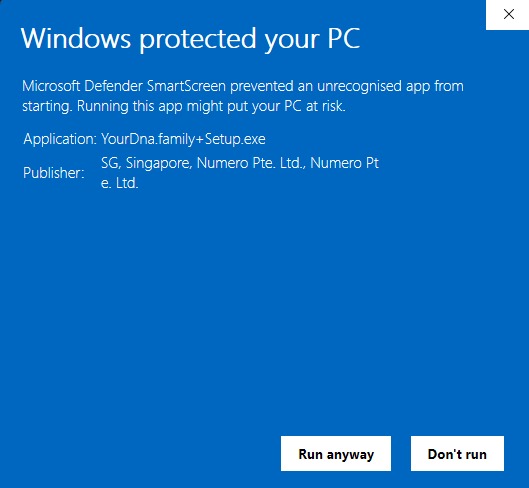
Check the "Publisher" line. It should include Numero Pte. Ltd. That's us. Windows shows it as "SG, Singapore, Numero Pte. Ltd., Numero Pte. Ltd." and may break the name in the middle of a word, like "Numero Pt" on one line and "e. Ltd." on the next. That's normal.
Step 4:
If the Publisher line shows Numero Pte. Ltd., click "Run anyway" to install our app. Note that you may need to pause your antivirus software again to complete the installation.
In case your windows Defender blocks internet access when you're eg on a public wifi (eg. Starbucks) please do follow these instructions:
Watch the video